Team hours and the roster
Set each team member's regular weekly hours and split shifts, and change a single day's hours on the roster for swaps, days off and extra shifts.
Each team member who takes appointments has their own hours, which decide when they can be booked. Their regular hours are their usual week. The roster changes a single day without touching the usual week: a swap, a day off, an extra shift or someone going home sick.
How team hours work
- Regular hours repeat every week. Set them once, when someone starts or their days change.
- The roster is for one day at a time. A day you change there shows as changed until you put it back to their usual hours.
- Opening hours are the salon's, shown on your booking page and used as the starting week for a new team member. They don't decide when anyone can be booked: each person's own hours do. See opening hours.
Only team members with Takes appointments turned on have hours and appear on the roster.
What team hours change on the calendar and online
- Online booking only offers times inside a person's hours on that day, regular or rostered. Someone with a day off can't be booked online that day.
- The calendar shows each person's hours for the day under their name, or "Not rostered" when they're off. Hide staff not rostered, in the Team menu on the calendar, leaves out anyone not working that day.
- At the desk you can still book outside someone's hours. FullColumn warns first ("Mia isn't rostered on for all of this time", or "isn't working that day"), and you choose whether to go ahead.
- Reports: rostered hours count in the Pay report's rostered hours and takings per rostered hour. See pay and commission reports.
Changing someone's hours never moves appointments already booked.
Setting a team member's regular hours
From Settings:
- Open Settings → Team & roster and click the team member.
- Under Regular hours, turn on each day they work and choose their start and finish times. Days turned off show as "Closed".
- Choose Save.
From the calendar: click their name at the top of their column and choose Regular hours…. There, Same as opening hours sets their week to your opening hours in one go.
Times run from 5 am to midnight. A new team member's week starts as your opening hours, so you only change the days that differ. Setting someone's regular hours needs "Manage the team, permissions and PINs".
Adding a split shift
A split shift is two (or more) stretches of work on one day, like 9 to 1 and then 4 to 8, with time off in between.
- In their Regular hours, find the day.
- Choose Split shift (the + beside the day's times). A second set of times appears after the first.
- Set its times, and choose Save.
Remove a stretch with the × beside it. Online booking won't offer times in the gap, and the calendar treats it as time they're not rostered on.
Changing hours for one day on the roster
- Open Settings → Team & roster and choose the Roster tab. On the calendar you can also choose Team → Roster….
- Use the arrows to find the week. Each person has a row, and each day shows their hours or "Off".
- Click the day you're changing.
- Choose Working and set the times (with a split shift if you need one), or choose Day off.
- Choose Save.
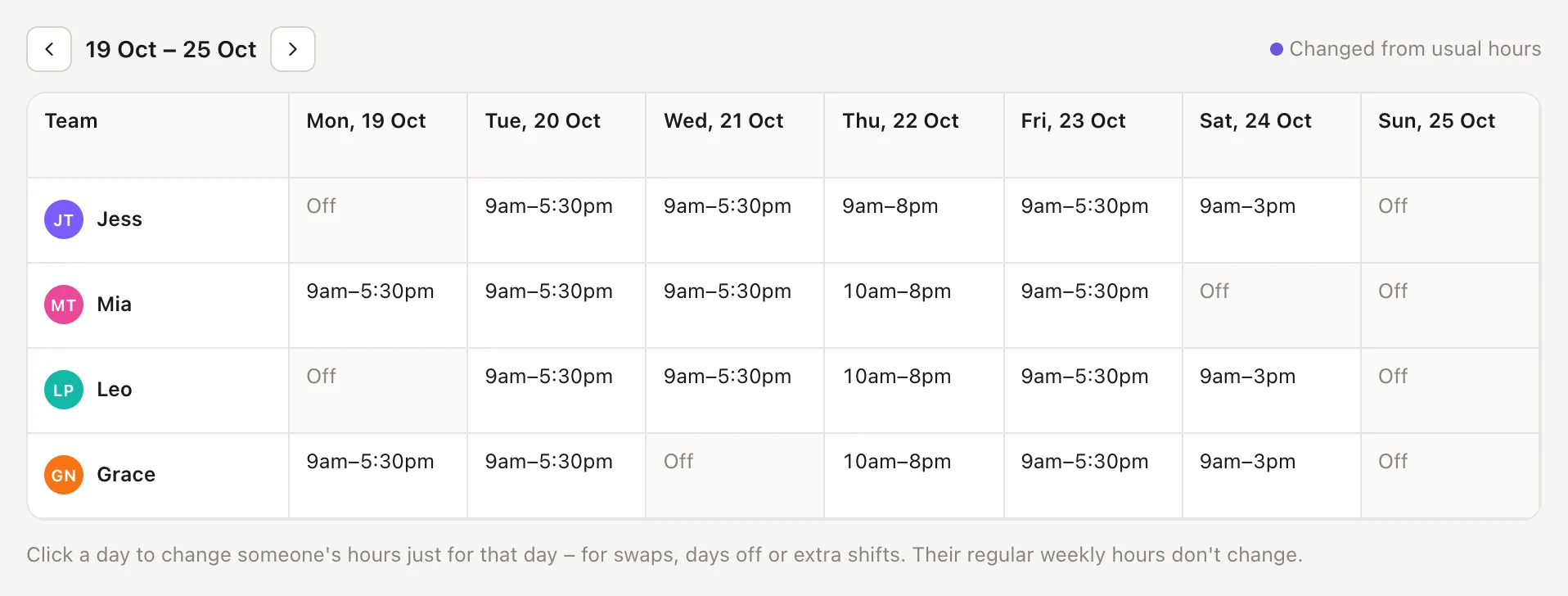
Days changed from someone's usual hours are marked with a dot. To undo a change, click the day and choose Usual hours.
For today or any day on screen, it's quicker from the calendar: click the person's name at the top of their column and choose Hours today… (or Hours on that day). This is handy when someone's running late, leaving early or off sick.
Changing the roster needs "Change rosters and time off". Managers have it; staff don't unless you give it to them. It works on a Front desk shared device without a password.
Giving someone a day off or time off
- A whole day off: on the roster, click the day and choose Day off.
- Part of a day (an appointment, a training session) or leave across several days: block out the time on the calendar instead, with a reason. See blocked time and time off.
- A permanent change, like no longer working Mondays: change their Regular hours.
Either way, online booking stops offering that time. Appointments already booked in it stay where they are, so move them if you need to.
Changing opening hours and your team's hours together
When you change your opening hours from the calendar (Opening hours… in the calendar's menu), FullColumn checks who works exactly your opening hours. It offers to change their hours to match ("Change Mia and Jo’s hours to match"), ticked to start with. Everyone else keeps their own hours.
Changing opening hours in Settings → Opening hours doesn't change anyone's hours. Update each person's Regular hours too if they should follow.
Common questions
Can stylists change their own hours?
Not by default. Regular hours need "Manage the team, permissions and PINs", and one-day changes need "Change rosters and time off". Give someone the second one if they should manage their own roster.
Someone's off sick today. What's the quickest way to change their hours?
Click their name at the top of the calendar, choose Hours today…, choose Day off (or their new times) and Save. Then move or cancel their appointments.
Why can't a client book a stylist online at a time they're working?
Their hours are only one part. The stylist also needs Bookable online turned on and to do every service the client picked, and your online booking rules (notice, how far ahead, start times) apply too. See online booking rules.
Does changing someone's regular hours change days I've already rostered?
No. A day changed on the roster keeps its own hours until you choose Usual hours for it.
Why isn't a team member on the roster?
The roster only shows people with Takes appointments turned on. Turn it on in their details if they should have a column on the calendar; each team member with one counts towards your plan.