Checking out a client
Ring up services, products, gift vouchers and tips, take payment, rebook and send a receipt, park a sale for later, or pay for several clients at once.
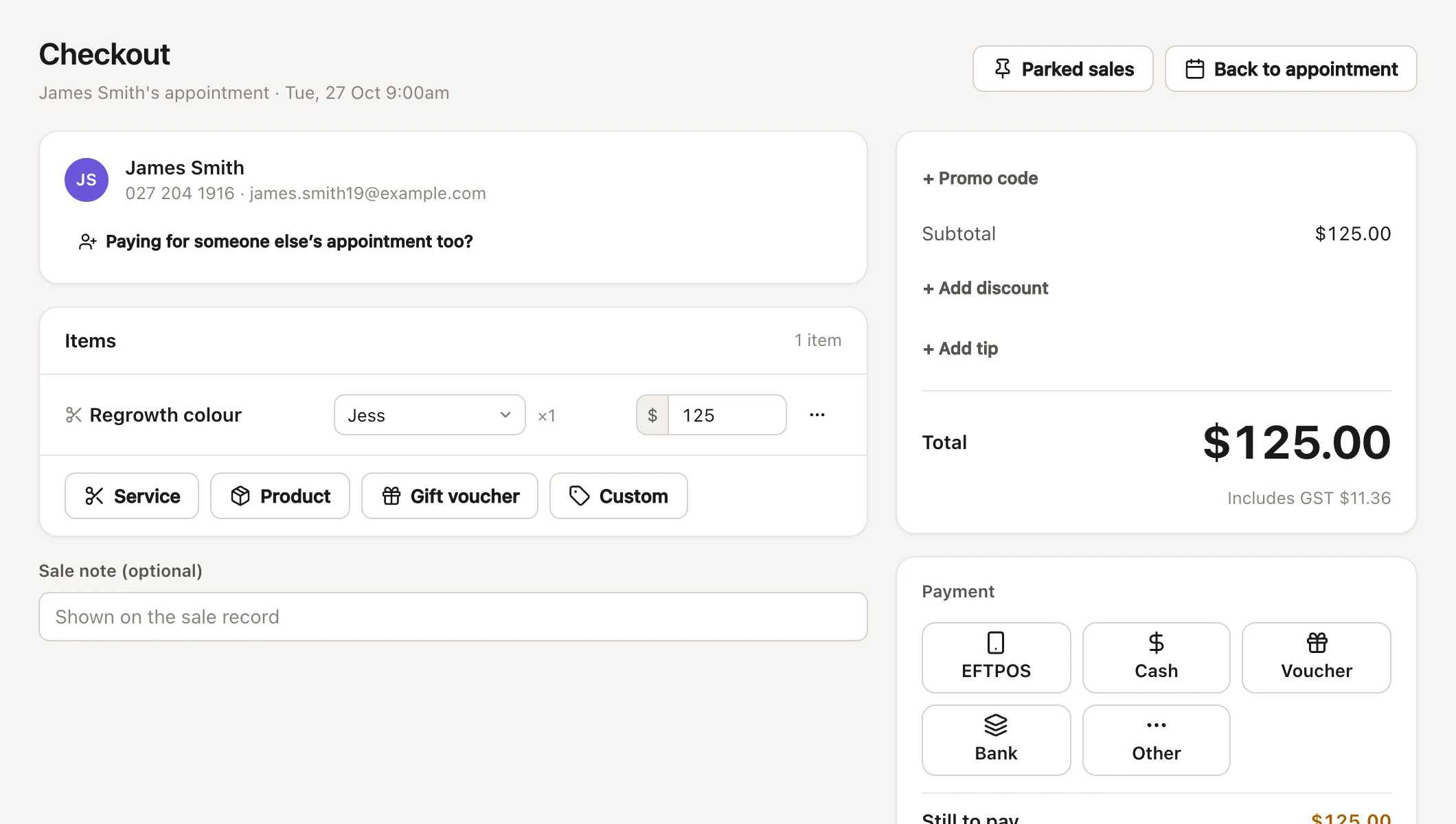
Checkout is where an appointment becomes a sale: the services come across from the appointment, you add anything else they're buying, take payment and hand over a receipt. You can also sell to someone without an appointment, put a sale aside to finish later, or have one person pay for several appointments.
Opening checkout for an appointment
- Open the appointment on the calendar, on the day or after it.
- Press Checkout. Once the client is checked in, the button shows the total: Checkout · $95.00.
Each service on the appointment comes across with its stylist and price. When the sale is finished, the appointment is marked as checked out and paid.
- If the appointment has already been paid, FullColumn tells you and opens its sale instead.
- If it's already in a parked sale, checkout carries on from that parked sale, so nobody charges for it twice.
- A booking request can't be checked out until it's approved: see approving online bookings first.
Starting a new sale without an appointment
For a product sale, a gift voucher or a walk-in you didn't book:
- Checkout in the menu, or New sale on the Today page or the Sales page (press N there).
- Sell on a client's profile opens checkout with them as the client.
Choosing who's paying at checkout
The client is optional. Search for them under Client, or leave it blank for a walk-in. Change picks someone else.
Choosing the client matters when:
- they have account credit, such as a deposit: checkout shows it with a Use credit button
- they have a saved card you want to charge
- a promo code is for new clients only, or once per client
If the client has an alert on their profile, it shows in red under their name.
Adding services, products, gift vouchers and custom items
The buttons under Items add to the sale:
- Service: choose a service. Its price is the one for the stylist on the sale (their price level).
- Product: search by name, brand or SKU, or scan a barcode. Products you track stock for show how many are left. Adding the same product again adds one more. Stock comes off when the sale is completed.
- Gift voucher: choose an amount ($50 to $250, or type one under Value), who it's for, Valid until (set by your gift voucher shop's Valid for to start with, or No expiry) and a Code, or leave the code blank to make one up. See gift vouchers.
- Custom: a one-off item with a Description and Price, like an extra toner.
On each line you can change the stylist (who the sale counts towards), the quantity for products and custom items, and the price. Item options (the ⋯ button) has Discount and Remove. See discounts at checkout.
Add a Sale note if you like: it's shown on the sale record.
Adding a tip at checkout
Press + Add tip, enter the amount and choose who it's for under Tip for. It starts with the stylist on the sale. Tips are added after tax and discounts, so nothing is taken off them. Add the tip before you take a card payment, so the amount charged includes it.
How tax shows on the sale
Tax follows your business settings:
- Prices include tax: the total shows "Includes GST $8.64" underneath.
- Tax is added at checkout: a GST line is added before the total.
Gift vouchers aren't taxed when they're sold; tax is counted when they're spent.
Finishing a sale
- Add the payments under Payment: see taking payment and card payments.
- When Fully paid shows, press Complete sale · $95.00, or ⌘ Enter (Ctrl Enter on Windows).
The sale can only be completed when the payments add up to the total exactly, every gift voucher has been checked, and every discount has a reason if your salon asks for one.
If the connection drops as you complete it ("Can't reach the server"), press Complete sale again once you're back online. If the first press got through, that sale is what you'll see: it's never recorded twice, and its stock comes off once.
On a phone, the total and what's left to pay stay at the bottom of the screen. Until the sale can be completed, the button there takes you to the payments.
Rebooking before they leave
When an appointment's client has nothing else booked, the finished sale asks "Rebook Sam before they leave?" with a button like In 6 weeks. It opens a new appointment that many weeks on, for the same client and services, ready to pick a time.
The weeks come from the service's Rebooking reminder in your service menu: the longest of the services on the sale, or 6 weeks when none is set.
Printing or emailing a receipt
The finished sale shows Paid $95.00, any Change to give, and the receipt: your salon's name, address and phone, the receipt number and date, your tax number, each item with its stylist, discounts, the tip, tax, how it was paid and any gift voucher codes sold. Your receipt message goes at the bottom.
- Print prints the receipt.
- Email receipt sends it to the client's email, or asks for an address.
- New sale starts the next one; Back to calendar (or Enter) goes back.
You can print or email any receipt again later from the sales list.
Parking a sale to finish later
Park a sale when someone's still deciding, or someone else is paying at pick-up.
- Press Park sale for later.
- Add a note if it helps, like "Dad's paying at pick-up", and press Park sale.
Anyone can finish it from Checkout → Parked sales, on any device: each shows who it's for, what's on it, the note, who parked it and the total. Press Resume to carry on, or the bin to discard it (nothing has been paid, so the appointments just stay unpaid). The menu shows how many sales are parked.
- Payments entered before parking aren't kept: take them when you finish.
- A sale with a card payment already taken can't be parked. Finish it, or take the card payment off first.
- When you resume, any appointment that's been paid or cancelled since is left off.
Paying for several clients on one sale
A parent paying for the kids, or friends who came in together, can pay on one sale. Each service stays with its stylist.
- Press Paying for someone else's appointment too?
- Choose the day, find their appointment and press Add. Appointments in a parked sale can't be added.
The items are grouped For each person, and so is the receipt. A whole-sale discount is shared between them in proportion to what each had. To take someone off, press the × on their name. Someone else is paying changes the payer.
Only the payer's own account credit can be used. Credit on someone else's account stays with them for their own checkout.
Common questions
Can I check out without choosing a client?
Yes. Leave Client blank and it's a walk-in sale. You'll need a client to use account credit or charge a saved card.
Can I change a service's price at checkout?
Yes, type a new price on the line. To show money taken off, use a discount instead, so it appears on the receipt and in reports.
How do I fix a sale after it's completed?
Void it and check it out again: see refunds and voiding sales. Voiding puts the appointment back to unpaid.
Who does a sale count towards?
Each line counts towards the stylist chosen on it, and the tip towards the person under Tip for. Change them before you complete the sale.