Reports: what each tab shows, choosing dates and downloading
Find your way around Reports in FullColumn: what each tab shows, who can see it, choosing the dates, comparing periods and downloading spreadsheets.
Reports is where you see how the salon is going: what you took, who came in, how the team is tracking against their targets, what to pay them, and what your accountant needs. Each report is a tab, each one has a date range, and most can be downloaded as a spreadsheet.
Opening Reports
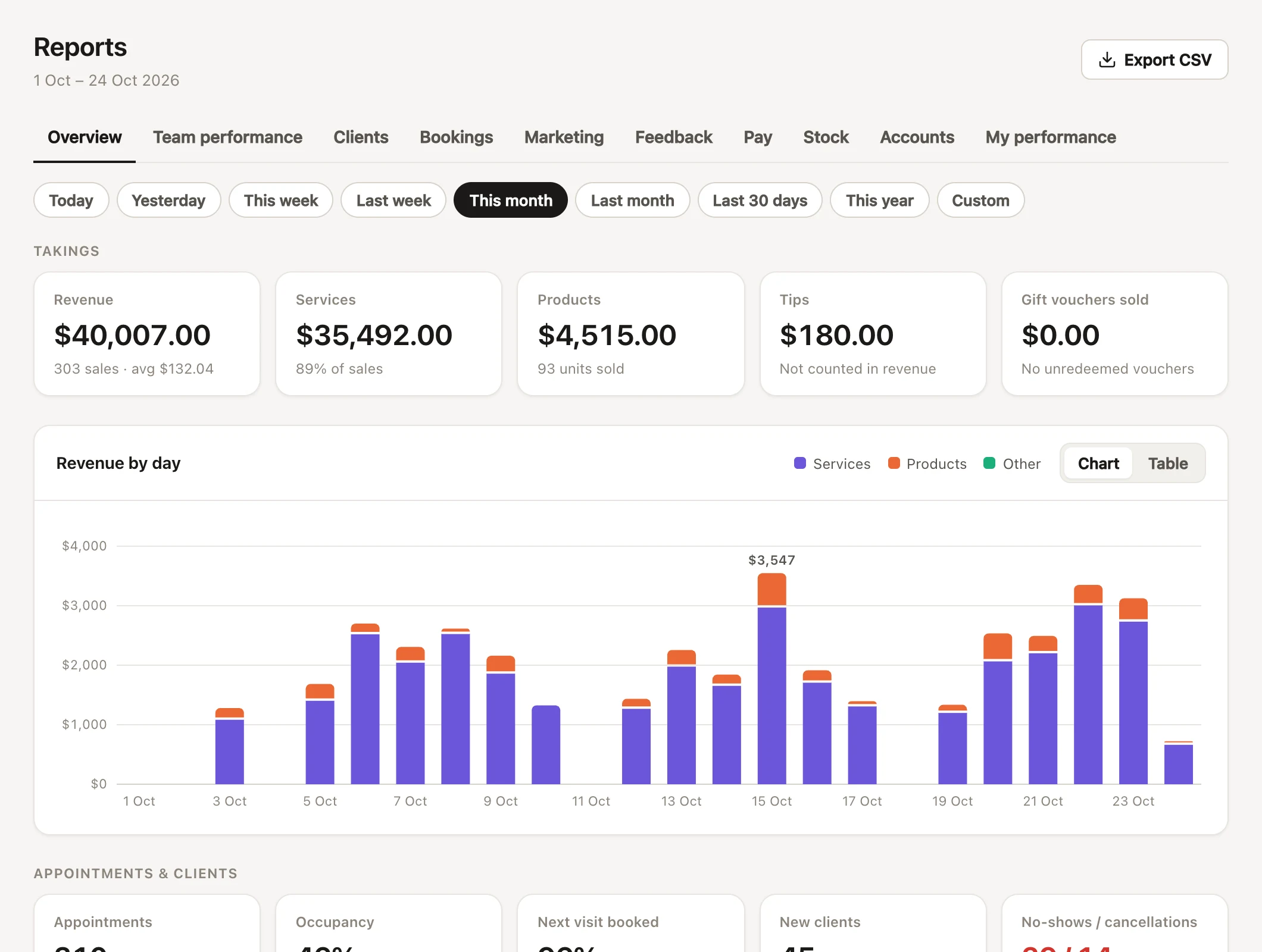
Choose Reports in the menu. The tabs across the top are the reports you're allowed to see, in this order:
| Tab | What it shows |
|---|---|
| Overview | Takings, revenue, money in by payment method, tax, tips, gift vouchers, account credit, discounts, appointments and the team at a glance. See the Overview report. |
| Team performance | Each team member's takings, clients, rebooking, retention, average spend and utilisation, next to the period before, with their targets. See Team performance. |
| Clients | Clients seen, new and returning clients, new clients coming back, top clients, and clients who haven't been back. See the Clients report. |
| Bookings | What's booked from now on, cancellations and no-shows, how bookings were made, and your busiest times. See the Bookings report. |
| Marketing | How campaigns and automatic marketing did: messages sent, and clients who booked afterwards. See the Marketing report. |
| Feedback | What clients said in your feedback forms: how many were asked and answered, each question's answers, average ratings and Net Promoter Score. See the Feedback report. |
| Pay | Commission, tips and hours for each team member, and a spreadsheet for payroll. See Pay and commission. |
| Stock | Stock on hand at cost and retail, what's low, product sales and margins, and stock movement. See the Stock report. |
| Accounts | What your accountant asks for: the tax summary by month and every transaction as a spreadsheet. See the Accounts report. |
| My performance | Your own takings, clients, targets and pay. See My performance. |
Clients, Bookings, Marketing, Team performance and My performance end with How these numbers are worked out, and the other tabs explain their figures in notes beside them. Open it when a figure isn't what you expected.
Who can see which reports
What someone sees in Reports depends on four permissions (Settings → Team & roster: three under "Reports and marketing", and "See clients’ feedback" under "Clients"). Owners have every permission.
| Permission | What it opens | Who has it to start with |
|---|---|---|
| "See their own takings and targets" | My performance, and the "so far" card and Your takings today on the Today page | Owners, managers and staff |
| "See reports for the whole salon" | Overview, Team performance, Clients, Bookings, Marketing, Stock and Accounts, setting targets, and Takings today on the Today page | Owners and managers |
| "See and change pay and commission" | Pay, the Commission column on the Overview, and commission rates | Owners only |
| "See clients’ feedback" | Feedback | Owners and managers |
A few things follow from these:
- Someone with only "See their own takings and targets" sees Reports in the menu with just their own numbers. They never see anyone else's takings.
- Someone with "See clients’ feedback" but not the whole salon's reports sees Reports with Feedback (and My performance, if they have it).
- My performance is only listed for people with a column on the calendar. An owner who doesn't take clients sees the whole salon's reports but no My performance tab.
- Phone numbers and email addresses in reports (top clients, clients who haven't been back) only show for people with "See clients' phone numbers and email addresses".
To change who sees what, see roles and permissions.
Reports on a Front desk device
On a shared device set to Front desk, the whole salon's reports, Pay and Feedback are held back until the person gives their password. Their tabs show a lock: choosing one asks for the password (and two-step code, if they use one), then opens it. If every tab is locked, Reports says "This is a front desk device, so the salon's reports need your password first", with Unlock full access.
My performance needs no password on a Front desk device: your own takings and targets are part of day-to-day desk work. Downloads ask for the password too, once full access runs out. See shared devices and PINs.
Choosing the dates for a report
Every report has a date range under the tabs. On a phone it's a menu; on a wider screen, a row of choices:
- Overview, Clients, Bookings, Marketing, Feedback, Pay and Stock: Today, Yesterday, This week, Last week, This month, Last month, Last 30 days, This year and Custom (pick the first and last day). They start on This month.
- Accounts: the accountant's periods: Last month, This month, Last quarter, This quarter, Last financial year (for salons in Australia, New Zealand and the UK), This year and Custom. It starts on Last month.
- Team performance and My performance: This month, Last month, Pick a month, This week, Last week, Pick a week and Custom. They start on this month, or this week if your targets are weekly.
"This week", "This month", "This quarter" and "This year" run up to today. A report covers a year at most: for a longer custom range, it asks you to pick a shorter one.
The dates stay the same as you move between tabs that offer them, and they're in the page's address, so a link to a report opens on the same dates. Each browser remembers the last choice like "Last month" (never a custom range) for the next time you open Reports.
All dates are your salon's days, in its time zone. Money counts on the day a sale was put through and appointments on the day they're for: see why numbers differ between reports.
Comparing with the period before
Team performance and My performance show each figure next to the period before, with the change under it (▲ or ▼, green when it's better). Hover over a change to see the earlier figure. The period they compare with is:
- Whole months: the same number of whole months before (October with September).
- This month so far: the same days of last month (1–12 October with 1–12 September).
- A week or less: the same days a week earlier.
- Anything else: the same number of days just before.
Money shows the change as a percentage, rates (like rebooking) in percentage points ("+4 pts"), and counts as a number.
Downloading a report as a spreadsheet
Most reports download as a CSV file, which opens in Excel, Numbers or Google Sheets. The file is named after the report and its dates.
| Tab | Button | What's in the file |
|---|---|---|
| Overview | Export CSV | The team table, the totals, money in by method, account credit and discounts by reason |
| Team performance | Export CSV | Every figure for each person and the whole salon, with the period before and any targets |
| Clients, Bookings, Marketing | Export CSV | The tab's tables with every row (long lists on screen stop at 100 or 200) |
| Pay | Download for payroll | Each person's takings, commission, tips and hours, and voided sales taken back |
| Stock | Export CSV | One row per product: stock, values, movement, sales and margin |
| Accounts | GST summary and Transactions | The tax summary by month, and every sale line, payment, refund and credit movement |
Feedback and My performance have no download. Client phone numbers and emails are only in the Clients file for people who can see them. For a copy of everything in your salon, see downloading everything.
Getting last month's numbers by email
Anyone who can see the whole salon's reports can have last month's numbers emailed to them on the 1st: takings, appointments, new clients, rebooking and more, next to the month before and the same month last year. Turn on Email me last month's numbers under Monthly stats in Settings → My account, or press See last month's there to look now. The figures are worked out the same way as the Overview and Team performance. See team alerts.
Common questions
Why can't I see Reports in the menu?
You need "See their own takings and targets", "See reports for the whole salon" or "See clients’ feedback". Ask the salon's owner or a manager to turn one on for you in Settings → Team & roster.
Why isn't the Pay tab there?
Pay needs "See and change pay and commission", which only owners have unless an owner gives it to someone. Managers don't have it to start with.
Why isn't there a My performance tab for me?
My performance is for people with a column on the calendar. If you see the whole salon's reports but don't take clients yourself, the tab isn't listed.
Can I see more than a year at once?
Not in one report. Pick a year or less, or download each year and put them together in a spreadsheet.
Why doesn't the same figure match on two tabs?
Some reports count money by the day of the sale and others by the day of the appointment, some leave out voided sales and others take them back later, and a few figures sound alike but measure different things. Why numbers differ between reports goes through each one.