Your client list and finding a client
Search clients by name, mobile or email, filter and sort the client list, and add new clients to FullColumn.
Clients in the menu is every client on your books, with when they last came in, when they're booked next, how many visits they've had and what they've spent. Everyone on the team can open it, search it and add clients.
Finding a client
- Open Clients.
- Type in Search by name, mobile or email. The list narrows as you type.
The search finds:
- Names: any part of a first or last name, or both together ("sam lee").
- Mobile numbers: type three or more digits, from anywhere in the number. A leading 0 doesn't matter, so "0412 345" and "412345" both find 0412 345 678.
- Email addresses: any part of the address.
If nothing matches, you'll see No clients match. Try a different spelling or the mobile number, or press Clear search to start again.
Clients you've removed don't show in the list or in search. Removing a client explains how to bring one back.
Filtering the client list
The buttons under the search narrow the list down. Each works with the search and the sort.
| Filter | Who it shows |
|---|---|
| All | Every client |
| Booked in | Clients with an upcoming appointment |
| Not seen in 3 months | Clients who've been in before, whose last visit was more than 90 days ago, with nothing booked |
| New in the last 30 days | Clients added in the last 30 days |
| Birthday this month | Clients whose birthday falls in this calendar month |
| Has alert | Clients with an alert on their card, such as an allergy |
| Possible duplicates | Pairs of records that look like the same person (see Merging duplicate clients) |
Possible duplicates only shows for team members with the permission "Import, export, merge and remove clients". Owners have every permission.
The heading above the list counts the clients shown: "1,240 clients", or "86 matching" when a search or filter is on.
Sorting the client list
Use the Sort menu beside the search:
- Sort: Name: by first name, then last name. The list starts in this order.
- Sort: Last visit: who was in most recently first.
- Sort: Top spenders: who has spent the most first.
- Sort: Most visits: your most loyal clients first.
- Sort: Newest: the clients added most recently first.
FullColumn remembers your search, filter and sort while you look at a client, so Back brings the list back just as you left it.
What the client list shows
On a computer or tablet, each row shows the client's Name, Mobile, Email, Last visit, Next visit, Visits and Spent:
- A red alert icon beside the name means they have an alert. Hover over it to read it.
- Up to two of their tags show beside the name.
- Next visit is in green when they're booked in.
- Visits counts past appointments that went ahead (not cancellations or no-shows).
- Spent is everything they've paid at checkout, less tips, plus the prices of past visits brought across from your old booking system.
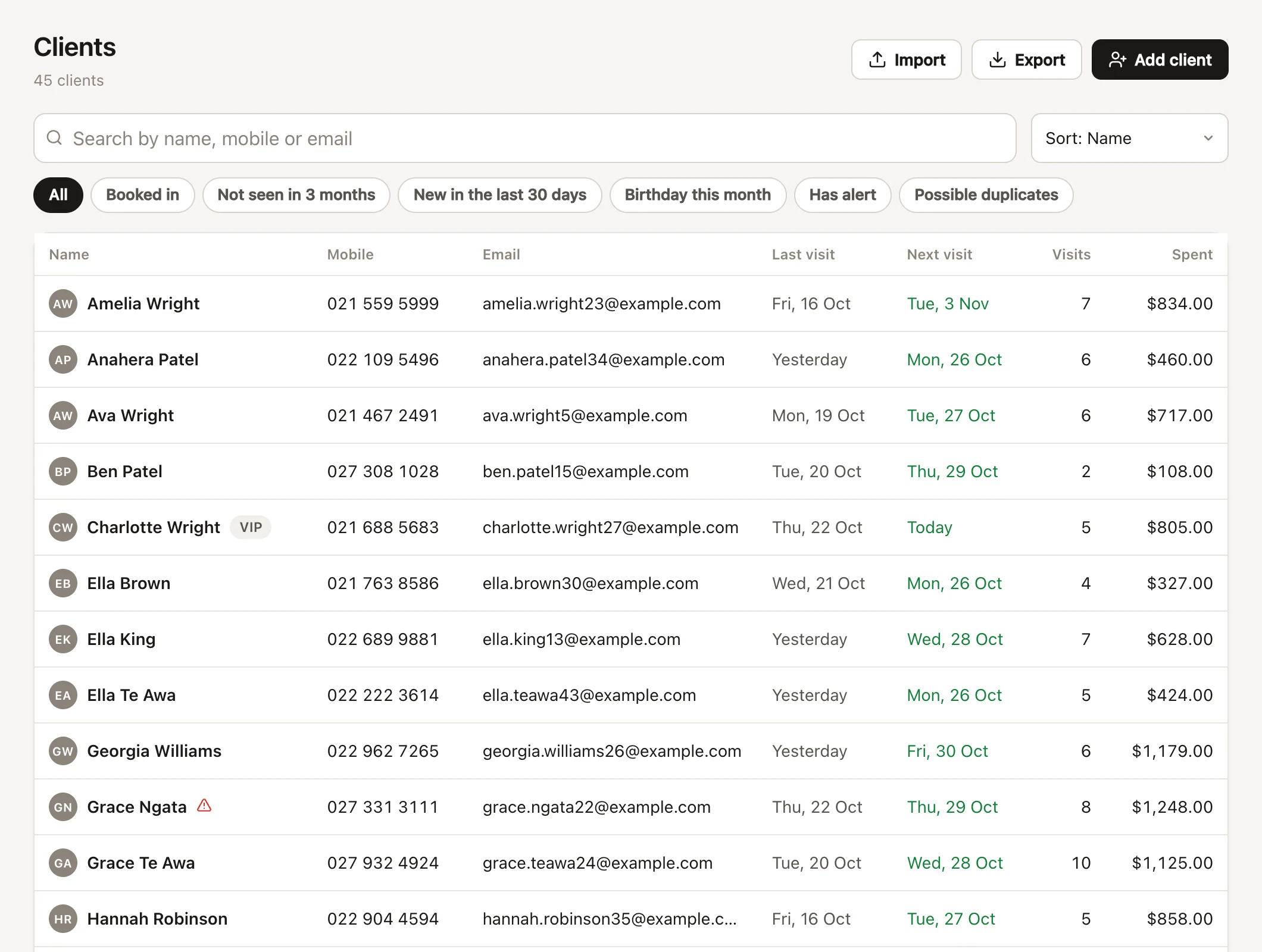
On a phone, each row shows the name, their mobile (or email), and "Booked" with the date of their next visit, "Last" with the date of their last one, or New if they've never been in.
The list shows 50 clients at first. Press Show more at the bottom to see the next 100, as often as you need. Tap or click a client to open their profile.
Team members without the permission "See clients’ phone numbers and email addresses" see mobiles and emails partly hidden (who sees phone numbers).
Adding a new client
- Open Clients and press Add client.
- Enter at least a First name or Last name. Everything else is optional.
- Press Add client. Their profile opens.
If you searched for someone first and they weren't there, Add client fills in what you typed: a name goes into the name boxes, a number into Mobile, an email address into Email.
The new client form has the same boxes as editing a client: mobile, email, birthday, usual stylist, alert, tags, last patch test, address, notes, and their reminder and marketing choices. Editing a client's details explains each one.
Clients are also added:
- When they book online: a new client is added with the details they typed, unless they're already on file (what your clients see).
- While you book: the new appointment form can add a client as you go (making an appointment).
- By importing your list from your old booking system (bringing your clients across).
Common questions
Why can't I find a client I know is on file?
Check the spelling, or search by their mobile number instead. If they still don't show, they may have been removed: removed clients are hidden from the list and search. Someone with the permission "Import, export, merge and remove clients" can restore them from their profile.
Can I see who hasn't been in for a while?
Yes: choose Not seen in 3 months. It lists clients who've visited before but not in the last 90 days and have nothing booked, the ones worth a "we miss you" message. Sort by Top spenders to see your best clients first.
Who can add and edit clients?
Everyone on the team. Removing, merging, importing and exporting clients need the permission "Import, export, merge and remove clients"; exporting also needs "See clients’ phone numbers and email addresses". Owners have every permission; roles and permissions explains how to give it out.
Does the client count include removed clients?
No. Removed clients don't show in the list or its count.