Recording colour formulas and client notes
Save a client's colour formula after each visit, see their last one when you book, and keep dated notes anyone on the team can read.
Every client has a Formulas & notes tab on their profile: their colour formulas and notes, newest first, each dated with who wrote it. Record the formula after each colour so anyone on the team can repeat the result next time.
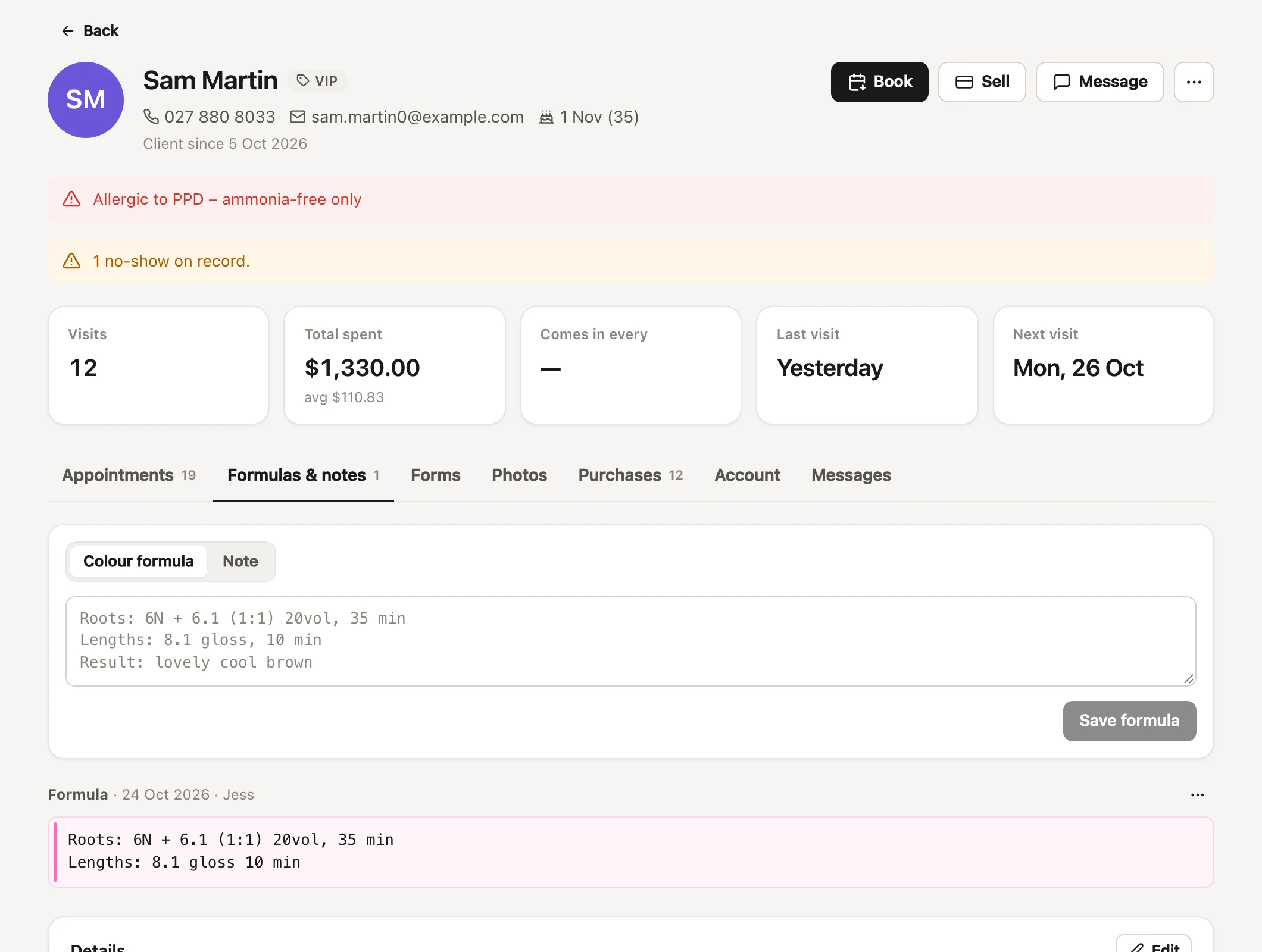
Adding a colour formula on a client's profile
- Open the client's profile and choose the Formulas & notes tab.
- Choose Colour formula (or Note for anything else worth remembering).
- Type the formula: the colours and ratios, developer, timing and how it turned out.
- Press Save formula, or ⌘ Enter (Ctrl Enter on Windows).
A formula can be written however your salon likes. For example:
Roots: 6N + 6.1 (1:1) 20vol, 35 min
Lengths: 8.1 gloss, 10 min
Result: lovely cool brown
Formulas show in an evenly spaced font, so ratios and timings line up the way you typed them. Each formula or note can be up to 5,000 characters.
Adding a formula from an appointment
You don't need to leave the calendar. Open the appointment and either:
- press Add beside Last formula, or
- choose Add colour formula from the appointment's menu.
Type the formula and press Save formula. It goes on the client's card, dated, and linked to that appointment.
Seeing a client's last formula when you book
The client's most recent formula shows:
- on their appointment, under Last formula, with how long ago it was written, and
- in the new appointment form, under the client's name once you've chosen them.
So the stylist and the colour bar can see it before the client sits down. Every earlier formula is on the Formulas & notes tab.
Editing, pinning, copying and deleting formulas and notes
Each formula or note has a menu (the three dots) beside it:
- Edit changes the text. Press Save when you're done.
- Pin to top keeps it above the newer ones, for a formula that's the client's go-to. Unpin puts it back in date order.
- Copy copies the text, to paste into a new formula and adjust it.
- Delete removes it, after Delete this?.
Everyone on the team can add, edit, pin and copy formulas and notes. You can delete the ones you wrote; deleting someone else's needs the permission "Import, export, merge and remove clients" (owners have every permission), and on a shared device set to Front desk it asks for your password first. Every deletion is noted in the salon's activity log, with what it said.
A formula or note with a phone number or email in it can't be edited by someone who can't see contact details: Edit is greyed out with "Has contact details hidden from you".
Notes on the Formulas & notes tab
Choose Note instead of Colour formula for anything worth remembering for next time: "Booked for a wedding in March", "Wants to go lighter gradually". Notes are dated and signed like formulas, so the tab reads as the client's history.
For something that should always be in view, like a preference or a sensitive scalp, use the Notes box on the client's details instead: it shows on every appointment as "Client notes". For anything that's a safety matter, use their Alert (client alerts).
Bringing formulas across from your old booking system
If your old booking system can export colour formulas or client notes as a CSV file, FullColumn can import them onto each client's card, with their original dates and who wrote them. Import your clients first, so the formulas join up with the right people (importing colour formulas and notes).
Common questions
Who can see a client's formulas?
Everyone on your team who can open the client's profile. Formulas are never shown to clients.
What happens to formulas when I merge two clients?
They all move to the record you keep, with their dates (merging duplicate clients).
Can I get all our formulas out of FullColumn?
Yes. Download everything includes every note and colour formula as a spreadsheet (downloading everything).
I deleted a formula by mistake. Can I get it back?
Not in the app, but the salon's activity log keeps the first 300 characters of every deleted formula and note. Whoever can see the log (owners, to start with) can find it in Settings → Activity log under Clients (the activity log) and add it again.