Appointment statuses, checking in and history
What booked, confirmed, arrived, in progress, completed, no-show and cancelled mean, checking clients in, cancelling or deleting, and an appointment's history.
Every appointment has a status that follows it through the day: booked, confirmed when the client says they're coming, arrived when they walk in, and completed once they're checked out. If they don't turn up it's a no-show, and if the visit's off it's cancelled. Each change is kept in the appointment's history, with who made it.
The appointment statuses
| Status | What it means | On the calendar |
|---|---|---|
| Booked | Going ahead, not confirmed yet. Appointments the team makes start here. | As usual |
| Confirmed | The client has confirmed (replying to a text, from their booking link, or by paying online), or someone marked it confirmed | A tick |
| Arrived | Checked in: the client is here | A person with a tick |
| In progress | The client is in the chair | A person with a tick |
| Completed | Checked out, or marked done without a charge | Faded, with a dollar sign (a tick if no charge) |
| No-show | The client didn't come | Faded and striped red, the name crossed out |
| Cancelled | The visit is off | Hidden, unless you choose ⋯ → Show cancelled |
| Request | An online booking waiting for you to approve it | Dashed amber, marked REQUEST |
| Awaiting payment | Held while the client pays online; let go if they don't | Dashed and faded |
Booking requests are answered with Approve or Decline rather than a status: see approving online bookings first. Online payments are covered in deposits and card on file.
Changing an appointment's status
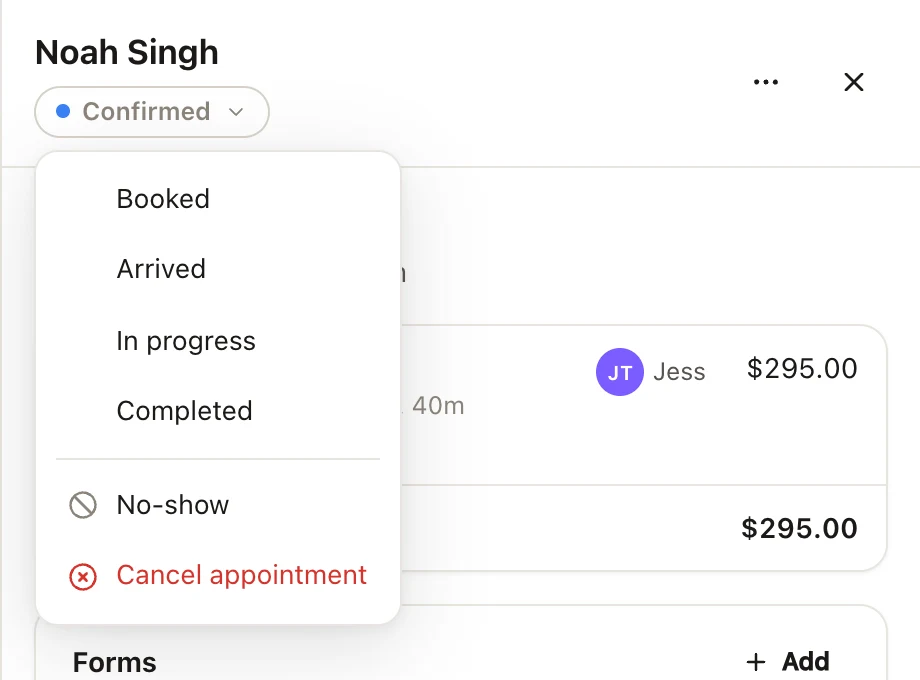
Open the appointment and click its status, just under the client's name. The list has Booked, Confirmed, Arrived, In progress and Completed, then No-show and Cancel appointment. A message confirms the change, with Undo. A cancelled appointment can't be marked a no-show.
The buttons at the bottom of the appointment change with its status:
- Still to come: Confirm (while it's booked) and Edit.
- Today or earlier: Check in and Checkout.
- Arrived or in progress: Checkout with the amount.
- Completed: Receipt (once it's paid) and Rebook in 6 weeks (or its own number of weeks).
- Cancelled or a no-show: Restore booking, or Fee receipt when a fee was charged.
Changing an appointment's status needs "Book and change other team members’ appointments" unless every service in it is yours. Once an appointment is checked out, its status can't change at all: the list just says "Checked out: void the sale to change this". Void the sale first, which puts the appointment back to arrived.
Checking a client in
When your client walks in, open their appointment and press Check in. It's marked Arrived ("Sarah Walker checked in"), with Undo, and counts under In the salon now on the Today page. When they're done, press Checkout: see checking out a client.
Walk-ins booked with Walk-in now, or as a walk-in for today, are checked in already.
Confirming appointments
Clients confirm their own appointments by replying to their confirmation or reminder, or from their booking link: see replies and confirmations and reminders. To mark one confirmed yourself, press Confirm or choose Confirmed from its status.
From the appointment's ⋯ menu:
- Send confirmation sends the client their confirmation again.
- Send reminder sends their reminder now (for appointments still to come).
- Copy client's booking link copies the link where they can see, confirm, change or cancel it.
The Tomorrow tile on the Today page says how many of tomorrow's appointments aren't confirmed yet.
Marking a no-show
When a client doesn't turn up, open the appointment and choose ⋯ → Mark no-show (or No-show from its status), then Mark no-show. It stays on their record, so you can spot repeat no-shows: their client card in each appointment shows how many no-shows and cancellations they've had.
A no-show frees the time, and FullColumn tells you if anyone on the waitlist fits it. If the client has account credit or a saved card, the appointment offers Charge a no-show fee?; otherwise any deposit stays on their account for next time. See no-show and late cancellation fees.
Cancelling an appointment
- Open the appointment and choose ⋯ → Cancel appointment (or Cancel appointment from its status).
- Add a Reason (optional), like "Unwell, rebooking next week".
- Tick Let the client know it's cancelled to send them a cancellation. It's there when they have a mobile or email, and ticked unless the appointment has already passed.
- Press Cancel appointment.
The appointment comes off the calendar (⋯ → Show cancelled shows it again), and keeps its reason ("Cancelled: Unwell, rebooking next week") and history. A deposit stays on the client's account credit; it's refunded only if the client asks. Cancelled inside your cutoff for changes online, the appointment offers Charge a late cancellation fee?, as for a no-show; cancelled with more notice, it has Charge a fee instead. For a repeat series, Cancel the rest of this series… cancels the ones after it too: see repeat appointments.
Restoring a cancelled appointment or no-show
Open the cancelled appointment (turn on ⋯ → Show cancelled to find it) or the no-show, and press Restore booking. It goes back to Booked, with Undo. If someone has been booked into that time since, or the team member isn't working then, the message says so in amber ("Grace is already booked 9am–9:45am"), as it does for a move: restoring isn't stopped, so move it or press Undo.
If it was booked with a promo code that's been used up since, it comes back at full price, and the message says so. A booking request that was declined or withdrawn can't be restored: use Book another time… to book them a new appointment.
Cancelling or deleting an appointment: which to use
Use Cancel almost every time. Delete only for a mistake, like an appointment booked twice.
| Cancel | Delete permanently | |
|---|---|---|
| The appointment | Kept, hidden from the calendar | Gone completely |
| History | Kept, with the reason | Gone |
| The client | Can be sent a cancellation | Isn't told |
| On their record | Counts as a cancellation | Leaves no trace |
| Bringing it back | Restore booking | Can't be undone |
| Who | Anyone who can change the appointment | Needs "Delete appointments permanently" |
To delete, choose ⋯ → Delete permanently, then Delete. FullColumn checks first: "This removes it completely, with no history. Usually “Cancel” is better." Managers have this permission to start with, staff don't, and owners have every permission. On a Front desk device it asks for your password first (see shared devices). A paid appointment can't be deleted (void the sale first), and a booking request is declined instead, so the client hears and gets back anything they paid. A deposit on a deleted appointment stays on the client's account credit.
Closing off the day
Appointments that have finished but haven't been checked out are listed on the Today page under Not checked out, to check out, mark as a no-show, or mark Done, no charge. See the Today page.
An appointment's history
At the bottom of each appointment, History lists, newest first:
- Every change and who made it: created, edited ("Moved from…"), moved, resized, confirmed, checked in, cancelled (with the reason), marked as no-show, sent confirmation, repeated. Changes the client made from their booking link say "Client", and automatic ones say "System".
- Texts and emails about it: what kind (confirmation, reminder, cancellation and so on), whether it was sent, queued or failed (with why), and how long ago.
- What the client sent back: a reply by text, opting out by text, or a message from their booking link, with what they said.
It shows the last 30 changes and the last 10 messages.
More in the appointment
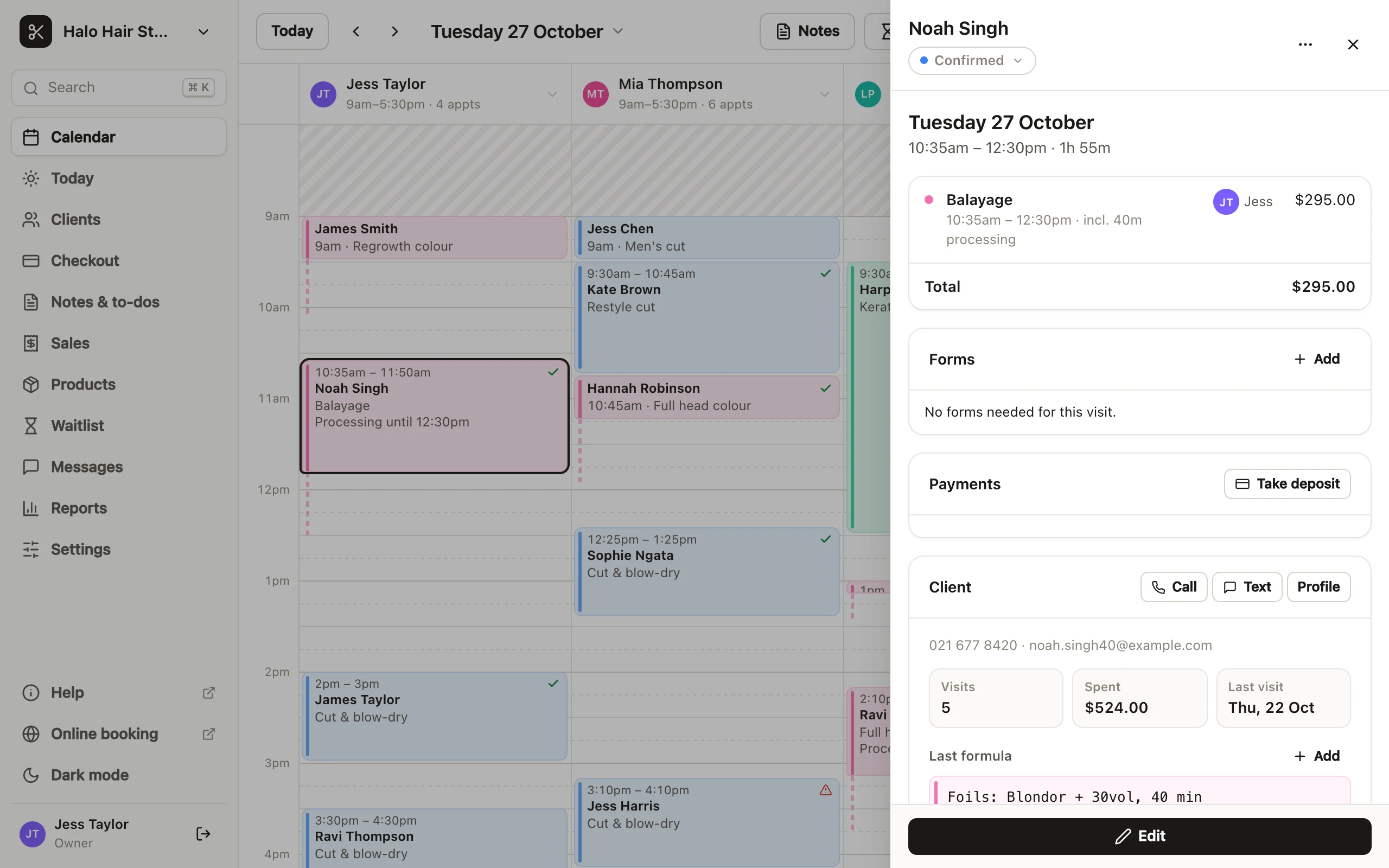
Besides its services and history, an appointment shows its forms (consultation forms, and feedback for people who can see it), payments and deposits, its notes, and a card about the client: Call, Text and Profile, their tags, visits, spend and last visit, their notes, their last colour formula and other appointments they've booked. ⋯ → Add colour formula saves a formula for this visit to their card. See colour formulas, sending forms and asking for feedback.
Common questions
What's the difference between Arrived and In progress?
Both mean the client's here. Arrived is what Check in sets; In progress is there if you like to show who's in the chair.
Can I undo a cancellation?
Yes. Press Undo straight away, or open the appointment later and press Restore booking.
Does marking a no-show charge the client?
No. It offers Charge a no-show fee? when they have credit or a saved card, and only charges if you choose to.
Why can't I delete an appointment?
You need "Delete appointments permanently", the appointment may be paid for, or it may be a booking request (decline it instead). Cancelling is usually better anyway.