Making an appointment
Book a client in from the calendar: one or several services and stylists, new clients and walk-ins, clash warnings, confirmations and deposits.
Booking a client in takes a few taps: pick the time on the calendar, choose the client and what they're having, and FullColumn works out how long it takes and what it costs with that stylist. It warns you as you go if the time clashes with anything.
Starting a new appointment
Any of these opens New appointment:
- Click an empty time in a team member's column: the appointment starts then, with them.
- Press New at the top of the calendar, or N.
- Choose ⋯ → New appointment on the calendar, or New appointment on the Today page.
- Press Book on a client's profile: the client is filled in.
- Search for "New appointment" (/ or ⌘ K).
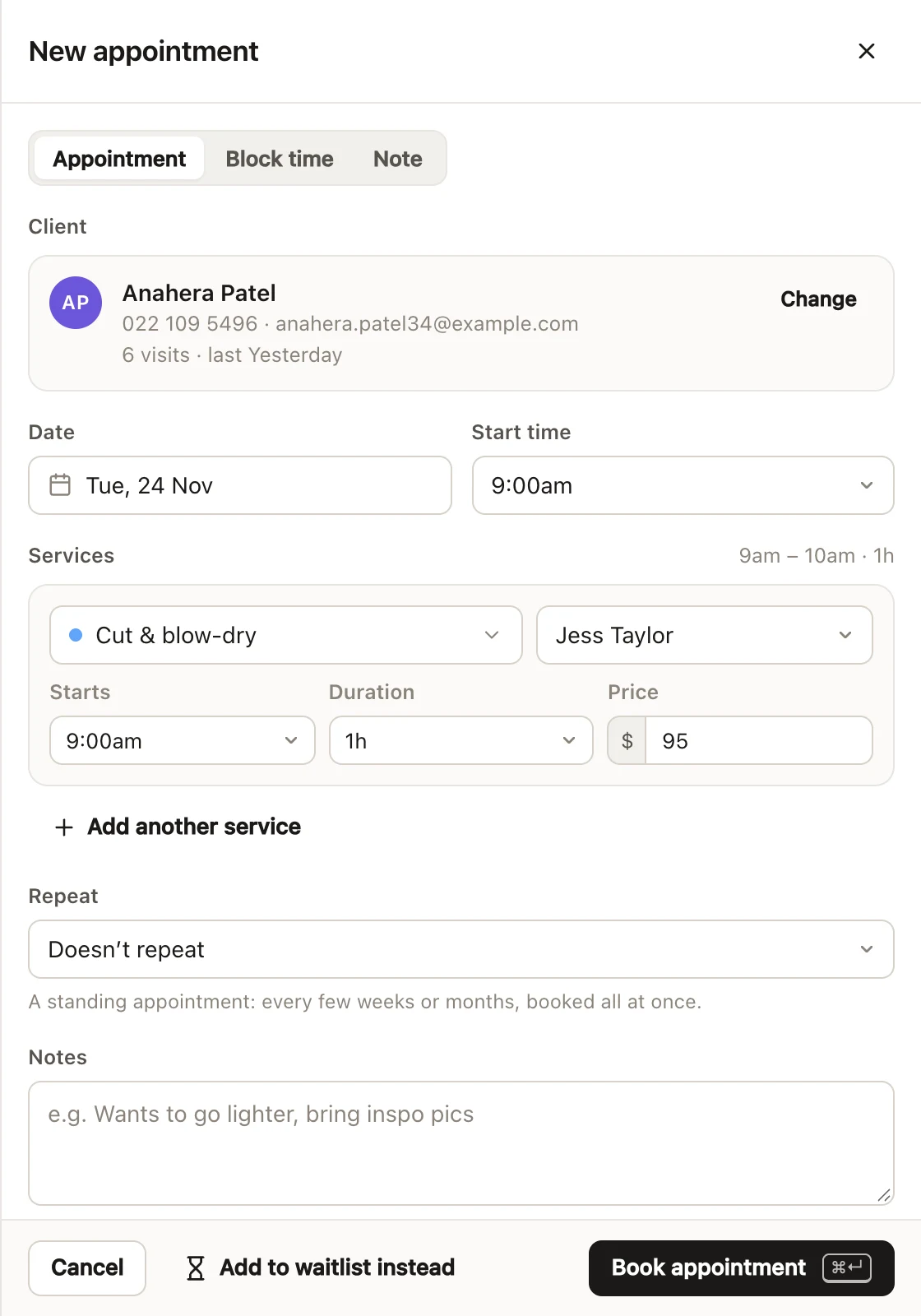
The drawer has three tabs: Appointment, Block time and Note, so a click on the calendar can also become blocked time or a note or to-do.
Choosing the client for an appointment
Under Client, type a name, mobile or email. Matching clients show with their contact details and last visit; a red warning sign means they have an alert. They show once the search for what you've typed is done ("Searching…" until then), so pressing ↵ never picks someone from an earlier search.
- New client "…" at the bottom of the results starts a new client from what you typed: a name, a mobile number and an email are each put in the right box. New client under the search does the same with empty boxes. A first name is needed; the mobile and email are optional. Marketing Texts and Emails are ticked: untick them if they haven't agreed to hear about offers. The client is saved when you book.
- Walk-in, no details books without a client (see walk-ins).
Once a client is chosen, their card shows their contact details, how many visits they've had ("First visit", or "8 visits · last 3 weeks ago") and their last colour formula. Change picks someone else. A client alert shows in red, and if a service needs a patch test they haven't had in the last 180 days, you'll see Patch test needed, with Done today to record one. See client alerts and patch tests.
Adding services and stylists to an appointment
Each service has its own line:
- Choose the service. Its length and price come from your menu for the team member doing it: their own price, their price level's, or the standard price. A level's price is labelled beside Price ("Price · Senior").
- Choose the team member, or Anyone. Someone who doesn't usually do that service is marked "(doesn't usually do this)". An appointment for Anyone sits in an Unassigned column until you give it to someone.
- Change Starts, Duration or Price if you need to. Changing the team member works out the length and price again, unless you've changed them by hand.
Add another service adds a line that follows straight on from the one before, with the same team member to start with. Give it to someone else for a colour with one stylist and a cut with another. Changing a service's Starts time leaves a gap or an overlap, and it no longer follows on. Remove a line with its ×. An appointment can have up to 12 services.
The total length, time and price are shown under the services. Services set up with processing time also show Busy and Processing: see processing time and padding. Prices and lengths per stylist are set up under price levels.
Choosing the date and start time
Date and Start time set when the appointment starts; changing the start time moves every service with it. If you started from an empty time on the calendar, it starts there. Otherwise, today's appointment starts at the next time from now, and another day's at the salon's opening time that day.
The times in the list go up in the steps set in Settings → Calendar → Snap appointments to. Each service's Starts goes up in 5 minutes.
Clash warnings and double-booking
FullColumn checks the appointment as you fill it in, and shows any problem under the service it's about:
- In red: the team member is already booked then ("Mia is already booked 10am–11am (Sarah Walker, Cut)"), there isn't enough padding time next to another booking, the salon is closed, or one person has two services at once.
- In amber: the team member has blocked time, isn't rostered on for all of it or isn't working that day, the padding runs outside their hours, or the service is only offered until an earlier date.
When you book with a red warning, Book anyway? lists them, and Double-book goes ahead. Amber warnings don't stop you. A team member's processing time is free, so booking someone into it isn't a clash. Online booking never offers a time with any of these problems.
Booking a walk-in
For someone who walks in without booking:
- ⋯ → Walk-in now on the calendar starts an appointment for right now (to the nearest snap time before it), marked as a walk-in and already checked in.
- In New appointment, Walk-in, no details books without a client: "No client details – you can add them later." A walk-in booked for today is checked in when it's booked.
Walk-ins show as "Walk-in" on the calendar. To add their details later, open the appointment, choose ⋯ → Edit appointment, then Add client. A walk-in can't repeat, and there's no confirmation or deposit for one.
Notes on an appointment
Notes are for the team: "Visible to the team on the calendar – not sent to the client." Use them for things like "Wants to go lighter, bring inspo pics". They show on the appointment, as a note icon on its card, and on the card itself when it's tall enough.
If the notes have a phone number or email in them and you can't see clients' contact details, you can read them but not change them.
Sending a booking confirmation
When the client has a mobile number or email, Send booking confirmation sends them their confirmation as soon as you book. It's on or off to start with depending on Settings → Reminders & SMS → Confirm bookings made by the team, and you can change it for each booking. The hint under it says how it's going ("By text to 0412 345 678"). Appointments in the past aren't confirmed. See confirmations and reminders.
Taking a deposit when booking by phone
Take a deposit next opens the new appointment straight on taking a deposit once it's booked: by a text or email link, a saved card, the card reader or at the desk. The deposit goes on the client's account credit. It's on to start with when your online bookings take deposits. See deposits and card on file.
Adding them to the waitlist instead
Fully booked? Add to waitlist instead (Waitlist on a phone) moves what you've entered into a new waitlist entry: the client, services, team member and the day. If you'd picked a time on the calendar, the entry asks for between an hour before it and an hour after. See the waitlist.
Making the appointment repeat
The Repeat list books a standing appointment all at once, every few weeks or months. See repeat appointments.
Booking the appointment
Press Book appointment (or ⌘ Enter; Ctrl Enter on Windows). A message confirms it ("Booked Sarah Walker – Tomorrow at 10:00am") and the appointment opens. If you close the drawer part-way through, FullColumn asks before throwing your changes away.
Who can book appointments for whom
Booking for other team members needs "Book and change other team members’ appointments". Without it, you can only book your own appointments, and booking someone else's (or Anyone) says "You can only book and change your own appointments. Ask a manager if you need more access." Staff and managers have this permission to start with, and owners have every permission. See roles and permissions.
Common questions
Can I book two clients with the same stylist at the same time?
Yes. FullColumn warns you, and Double-book books it anyway. To book into a colour's processing time, there's no clash at all.
Why isn't the price the one on my menu?
Prices come from the team member doing the service: their own price, their price level's, or the standard price. You can type another price for this appointment.
Why didn't my client get a confirmation?
Send booking confirmation may have been off, the client may have no mobile or email, or the appointment was in the past. You can send one any time from the appointment's ⋯ → Send confirmation.
Can I book a service that isn't on my menu?
No. Add it to your service menu first.