Client profiles: visits, spend, notes and history
Everything about one client in one place: their appointments, spend, formulas and notes, forms, photos, purchases, credit and messages.
A client's profile is their card: who they are, how often they come in, what they've spent, every appointment, formula, note, photo and message. Open one by choosing a client in Clients, from search, or with Profile on one of their appointments.
What's at the top of a client's profile
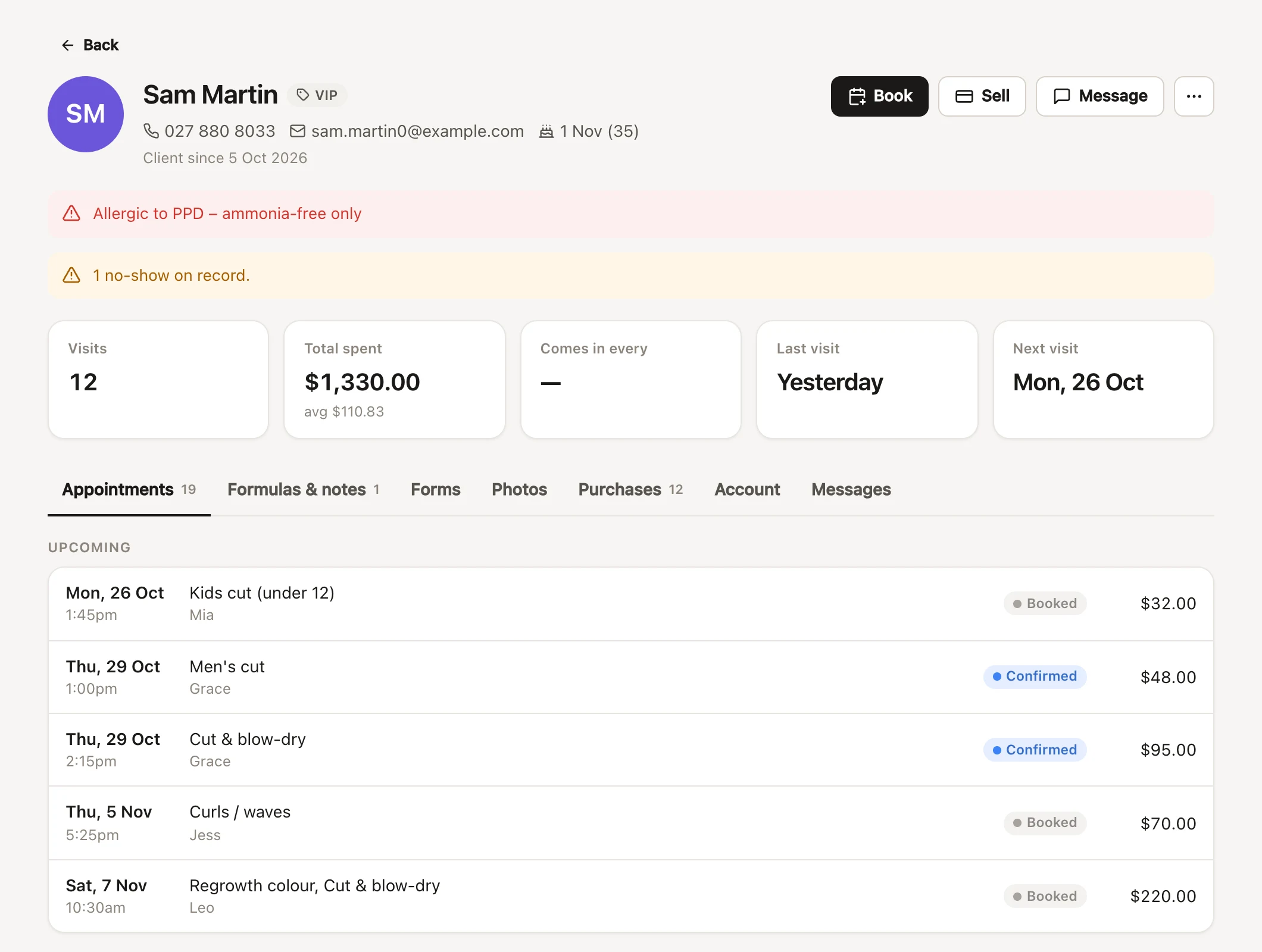
Beside and under their name you'll see:
- Tags, as badges beside the name, and Archived if the client has been removed.
- Their mobile and email: tap the mobile to call it, or the email to write to them.
- Their birthday, with their age when you have the year.
- Client since: the date they were added, or their first visit if that was earlier (handy for imported clients), then "joined online" or "imported" if that's how they came to you, and "usually sees" with their usual stylist.
The buttons beside the name:
- Book opens a new appointment for them (making an appointment).
- Sell starts a sale at checkout with them as the client (checking out).
- Message sends them a text or email (sending a one-off message). It's greyed out when they have no mobile or email.
- More (the three dots) has Edit details, Add to waitlist, Merge a duplicate into this client…, Restore client and Remove client. Merging, restoring and removing need the permission "Import, export, merge and remove clients"; owners have every permission.
Visits, spend and how often a client comes in
The numbers across the profile:
- Visits: past appointments that went ahead. Cancellations and no-shows don't count.
- Total spent: what they've paid at checkout, less tips, plus the prices of past visits brought across from your old booking system. Underneath, "avg" is their average sale.
- Comes in every: the average number of weeks between their visits. It shows once there's a pattern to see: at least three visits over at least four weeks. Two appointments on the same day count as one visit.
- Last visit and Next visit. Next visit says Not booked in amber when a client who has been in before has nothing in the book: a nudge to rebook them.
Banners on a client's profile
Notes that need attention show above the numbers:
- Their alert, in red: an allergy or anything the team must know (client alerts).
- This might be the same person as…: another record that looks like them, with Merge and Not the same person (merging duplicates). Only team members who can merge clients see it.
- On the waitlist: what they're waiting for, or the earlier time they'd like (the waitlist).
- No-shows on record: how many appointments they've missed.
- Credit on their account, with See account (account credit).
The tabs on a client's profile
- Appointments: Upcoming (including booking requests waiting for you to approve them) and History. Each shows the date and time, services, who they were with, any appointment note or cancellation reason, the status and the price. Tap one to open it on the calendar.
- Formulas & notes: their colour formulas and dated notes, pinned ones first (recording colour formulas).
- Forms: consultation, consent and feedback forms waiting to be filled in, and filled in, with Send a form (sending forms, reviewing answers). Feedback sent in has a Feedback badge, and feedback whose link closed before they answered is under Not answered.
- Photos: before and after photos (client photos).
- Purchases: their sales, newest first, with the sale number, date and total (voided ones are crossed out), and any Gift vouchers bought, with the code and what's left on each. Tap a sale to open it.
- Account: their account credit and deposits. The tab shows their balance when they have one (account credit).
- Messages: the last 50 texts and emails to and from them: reminders, confirmations, your own messages, their replies, "Opted out by text" and messages sent "From their booking link". Each shows whether it was sent, delivered or failed.
The Details card at the bottom shows their Address, Patch test date, Reminders (On or Off), Marketing (Texts, Emails, both, or Opted out), Feedback requests (On or Said no), any Card on file, and their Notes.
Seeing a client's feedback
What a client tells you in a feedback form after their visit shows in two places:
- Their profile's Forms tab: feedback waiting for an answer, feedback sent in (with a Feedback badge, and any answers to check), and feedback not answered before its link closed.
- The appointment it's about: its Forms card lists the visit's feedback form and where it's up to. Press View to read the answers.
Feedback only shows for team members with "See clients’ feedback (feedback forms sent in, and alerts about them)", which owners and managers have to start with. For everyone else, and on a Front desk device, it isn't listed at all, or counted in the Forms tab's number. See roles and permissions.
Editing a client's details
- On their profile, press Edit on the Details card, or choose More → Edit details.
- Change what you need and press Save.
| Box | What it's for |
|---|---|
| First name, Last name | At least one is needed. |
| Mobile, Email | Where reminders and messages go. |
| Birthday | For Birthday this month and birthday messages (automatic marketing). |
| Usual stylist | Shows on their profile as "usually sees". No preference leaves it blank. |
| Alert | Shown in red on every booking: allergies, sensitivities, anything the team must know. |
| Tags | Comma separated, e.g. VIP, Bride 2026. Campaigns can go to everyone with a tag. |
| Last patch test | The date of their last skin test, for the patch test warning. |
| Address | Shown on their profile. |
| Notes | Preferences, hair type, how they like their coffee. Shown on their appointments as "Client notes". |
Below the boxes, Appointment reminders, Marketing texts, Marketing emails and Feedback requests are their message choices (reminders and marketing consent). Feedback requests is for being asked how their visit went, with your feedback forms: it isn't marketing, so it's on unless they've said no.
Everyone on the team can edit a client's details. Only what you change is saved, so two people editing the same client at once don't undo each other's changes.
A birthday brought across without a year shows on the profile as the day and month, and the Birthday box looks empty. It's kept unless you choose a new date.
Removing a client
- On their profile, choose More → Remove client.
- The message says what will happen. Press Remove.
What happens depends on their history:
- A client with appointments, sales or account credit is archived ("They have history, so they'll be archived (hidden from lists) rather than deleted"). They're hidden from the client list and search, but everything stays on record, including any credit. Their appointments stay on the calendar, so cancel any upcoming ones first if they're not coming.
- A client with none of these (added by mistake, say) is deleted for good, with everything on their card ("This permanently deletes the client, unless they’ve ever had account credit: then they’re archived, as it’s money"). A client who once had account credit, even if it's all been used, is archived instead.
To bring back an archived client, open their profile (from one of their appointments, for example) and choose More → Restore client.
You need the permission "Import, export, merge and remove clients" to remove or restore a client; owners have every permission. On a shared device set to Front desk, it asks for your password first (shared devices). Removing and restoring are noted in the salon's activity log, with the client's name and who did it.
Removing a saved card from a client
When a client has saved a card, Card on file on the Details card shows its type, last four digits and expiry. Press Remove beside it, then Remove card. You won't be able to charge it for fees or at checkout, and the client can save a new one with their next online booking. It needs the permission "Refund card payments and account credit, and remove saved cards" (deposits and card on file).
Common questions
What's the difference between Notes and the notes on the Formulas & notes tab?
Notes on the client's details is one note that's always there, and shows on their appointments as "Client notes": "Prefers a quiet chair", "Sensitive scalp". The Formulas & notes tab keeps a dated entry each time, with who wrote it, like a visit log.
Why does their spend look different from their sales?
Total spent leaves out tips and adds past visits brought across from your old booking system, which have prices but no sales in FullColumn.
Can I undo removing a client?
Yes, if they were archived: open their profile and choose More → Restore client. A client with no appointments, sales or credit is deleted for good, and can't be brought back.
Why are some contact details hidden on a profile?
You don't have the permission "See clients’ phone numbers and email addresses". Contact details and privacy explains what's hidden and what you can still do.