Finding your way around FullColumn
The menu and its badges, searching with Command-K, keyboard shortcuts, dark mode, the banners across the top, and how Settings saves your changes.
The staff app has a menu down the left, a search that finds clients, dates and pages, and keyboard shortcuts for the front desk. This page covers what's where. On a phone the layout changes a little: see using FullColumn on phones and tablets.
The menu
The menu down the left of the staff app has:
| Menu item | What it's for |
|---|---|
| Calendar | The appointment book: using the calendar. |
| Today | The day at a glance: the Today page. |
| Clients | Your client list and client cards: your client list. |
| Checkout | Taking payment: checking out a client. |
| Requests | Online bookings waiting for approval. Shown while you approve online bookings first, or while any are waiting. |
| Notes & to-dos | Notes and jobs for the team: notes and to-dos. |
| Sales | The sales list, cash-up and gift vouchers: the sales list. |
| Products | Retail and salon stock: products and stock. |
| Waitlist | Clients waiting for a time: the waitlist. |
| Messages | Replies, the message log, campaigns and automatic marketing: replies and the Messages page. |
| Reports | Takings and performance. Shown to people with "See their own takings and targets" or "See reports for the whole salon": reports. |
| Settings | Everything you can set up. Each person sees the sections they have permission for. |
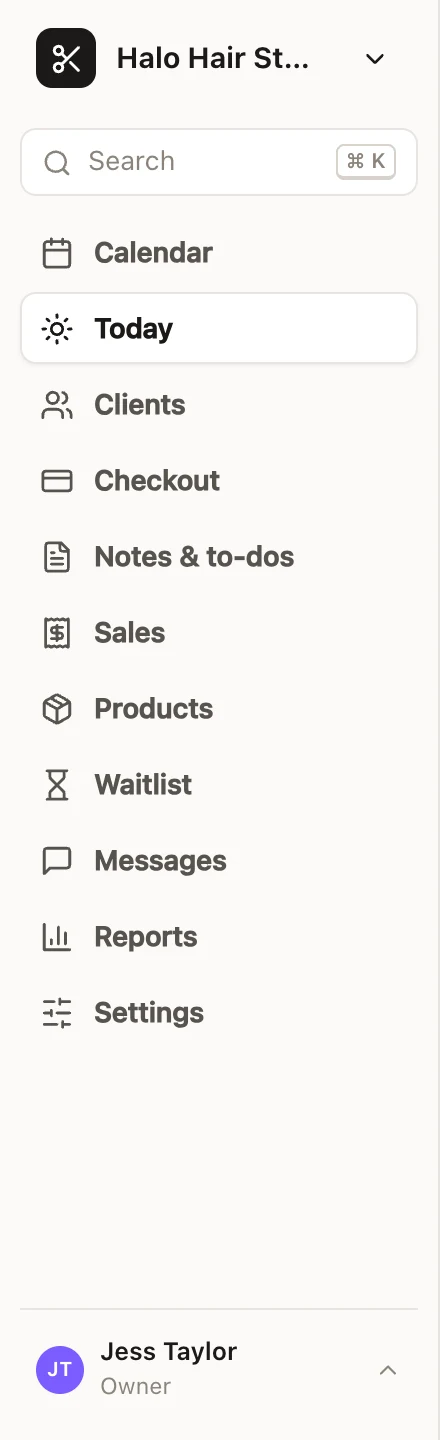
Your name and access (Owner, Manager or Staff) are at the bottom of the menu. Choose them for your own menu: My account, Help (this guide, in a new tab), the Theme (see dark mode below) and Sign out. On a shared salon device, the lock beside your name locks it for the next person.
Your salon's name and logo are at the top of the menu. The salon menu beside the name has Your booking page, which opens your booking page in a new tab as clients see it, and, if you work at more than one salon, moves between them: see signing in. It isn't shown on a shared salon device.
Badges in the menu
Small counts beside menu items tell you something's waiting:
- Messages: client replies nobody has read yet.
- Requests: online booking requests waiting for an answer.
- Notes & to-dos: to-dos that are overdue.
- Checkout: sales that have been parked to finish later ("2 parked").
The counts update every minute, and straight away when something changes on your screen.
Searching for clients, dates and pages
Choose Search at the top of the menu, or press ⌘ K on a Mac (Ctrl K on Windows) or /, then start typing:
- A client: two or more letters of their name or email, or three or more digits of their phone number. Each result shows their phone and when they were last in. Pick one to open their client card.
- A date: "tod", "tomorrow", "fri", "next tue", "14/11" or "in 6 weeks" offers Go to that day on the calendar. Dates are day first, unless your browser is set to US English.
- A page or action: "new appointment", "new client", "checkout", "cash-up", "gift vouchers", "roster", "online booking settings" and so on.
Use ↑ and ↓ to move, ↵ to open and Esc to close. Clients show once the search for what you've typed is done, so ↵ never opens someone from an earlier search.
Keyboard shortcuts
Shortcuts work when you're not typing in a box. On Windows, use Ctrl where these say ⌘.
| Keys | Where | What it does |
|---|---|---|
| ⌘ K or / | Anywhere | Search clients, dates and pages |
| ⌘ \ | Anywhere (not on a phone) | Shrink the menu to icons, or show it in full |
| N | Calendar | New appointment |
| T | Calendar | Jump to today |
| ← → | Calendar | Previous or next day (or week, in the week view) |
| D / W | Calendar | Day or week view |
| Esc | Calendar | Stop moving an appointment, close panels |
| N | Sales, Messages, Waitlist, Products, Suppliers, Purchase orders | New sale, message, campaign, waitlist entry, product, supplier or order |
| ← → | Sales list, cash-up | Previous or next day |
| ⌘ ↵ | An open form | Save it (or send, or complete the sale at checkout) |
Buttons with a shortcut show its key. Settings → Calendar lists the calendar's shortcuts too.
Making the menu icons only
The menu can shrink to icons only, leaving more room for the calendar. Hover over the menu's edge and choose the small arrow button, or press ⌘ \ (Ctrl \ on Windows). Hover over an icon to see its name. FullColumn remembers your choice on each computer or tablet. Until you choose, tablet-sized screens start with icons and bigger screens with the full menu.
Dark mode
Choose your name at the bottom of the menu, then Dark or Light under Theme. Same as this device, where everyone starts, follows your phone or computer's own setting, going dark when it does. Your choice is remembered on that browser only, so each device can be different. Your booking page has its own light and dark choice: see branding your booking page.
Messages across the top of the screen
A strip across the top of the staff app tells you about:
- Your plan: the free trial's last days or a payment that didn't go through (shown to whoever can manage billing, with a link to Settings → Plan & billing), or a salon that's read only (shown to everyone). See your plan and billing.
- News from FullColumn, like planned maintenance or a new feature, sometimes with More → for the details. Close one with its ×: it stays closed for you on that browser, unless FullColumn changes it.
- Full access on a Front desk device, with the minutes left and End now: see shared devices, PINs and Front desk.
Settings and saving your changes
Settings lists its sections down the side (on smaller screens, as a list where each section opens on its own page, with ← Settings to go back). You only see the sections you have permission for, and My account is everyone's. On a Front desk device, sections with a lock ask for your password first.
Most Settings sections don't save as you type. Once you change something, a bar says You have unsaved changes: choose Save changes, or Discard to put things back. Panels that slide in from the side ask Discard your changes? if you close them part-way, with Keep editing to go back.
Common questions
Why can't I see Reports or some Settings sections?
Each person sees what their permissions allow. Ask the owner or a manager if you need more: see roles and permissions.
Someone added a stylist on another computer. Do I need to reload?
No. When you come back to FullColumn after a few minutes away, it fetches new team members, services and prices by itself. The calendar keeps itself up to date too.
Is there a light and dark mode for each person?
Yes, it's per browser, so each person's phone and each salon computer can have its own.
What does the lock beside a menu item mean?
You're on a Front desk device, and that page needs your password first. Choosing it asks for your password and unlocks full access for a few minutes.