Using FullColumn on phones and tablets
Add FullColumn to your Home Screen, get alerts on your phone, find your way on a small screen, and move appointments on a touch screen with a long-press.
FullColumn works in the web browser on any phone or tablet, with nothing to download from an app store. Add it to your Home Screen and it opens like an app, full screen, and can send you alerts.
Adding FullColumn to your Home Screen
On an iPhone or iPad (in Safari):
- Go to app.fullcolumn.com and sign in.
- Tap Share, then Add to Home Screen, then Add.
- Open FullColumn from its new icon, and sign in again there.
The Home Screen app keeps its own sign-in, separate from Safari, which is why you sign in once more inside it.
On an Android phone or tablet (in Chrome): open app.fullcolumn.com, then choose Add to Home screen or Install app from Chrome's menu.
The Home Screen icon opens app.fullcolumn.com, which takes you straight to the salon you used last while you're signed in there. If you work at more than one salon, switch from the menu.
Getting alerts on your phone
Alerts pop up like a text message, even when FullColumn isn't open, for things like new online bookings and client replies. Tapping one opens the booking or message.
- On the phone, open Settings → My account.
- Under Phones and computers, choose Turn on alerts on this device, and allow notifications when your phone asks.
- Choose Send a test to check it works.
On an iPhone or iPad, alerts only work from the Home Screen app: add FullColumn to your Home Screen first, open it from there and turn alerts on inside it. If notifications are blocked, allow them for FullColumn in your browser's or phone's settings, then try again. What you get alerts about is up to you: see My account and team alerts.
Signing out turns off alerts on that phone. Turn them on again after you sign back in.
Getting around on a phone
On a phone, the menu moves:
- Along the bottom: Calendar, Today, Clients, Checkout and More. Checkout shows how many sales are parked. More opens the rest of the menu, and shows a count when online booking requests are waiting.
- Along the top: the menu button, your salon's name and Search.
- Settings opens as a list. Tap a section to open it, and ← Settings to go back.
Everything else works as it does on a computer. Your booking page and your clients' links are made for phones first.
Using the calendar on a phone
- The day view shows everyone's columns side by side; swipe sideways to see more of them.
- The week view shows one person's week at a time, starting with yours. Choose whose from the button with their name.
- Notes & to-dos and the Waitlist open over the calendar instead of beside it.
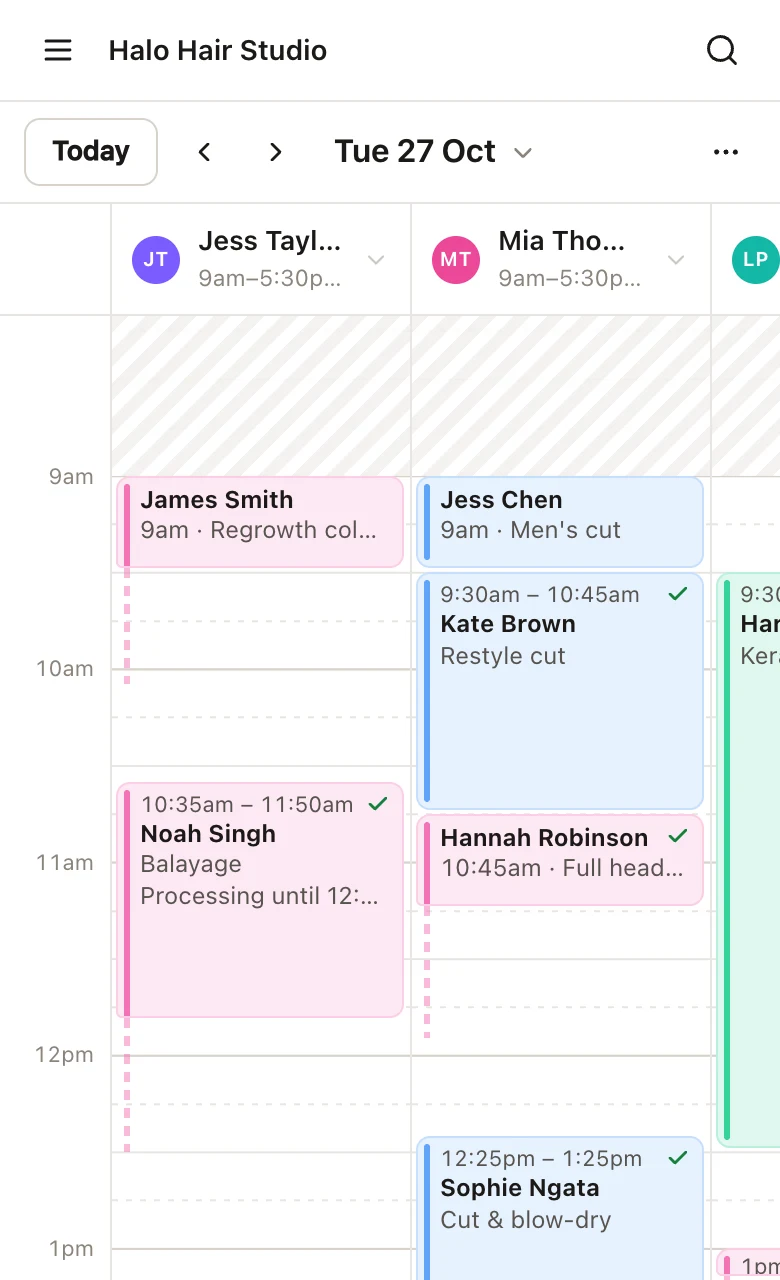
See using the calendar for the rest.
Moving and resizing appointments with a long-press
On a touch screen, a quick swipe scrolls the calendar, so moving an appointment starts with a long-press:
- Press and hold an appointment (or blocked time) for a moment, until it lifts. Phones that can, give a little buzz.
- Without letting go, drag it to another time or another stylist's column.
- Let go to drop it there. Undo puts it back.
If you let go without moving it, the appointment stays picked up, raised with finger-sized handles: drag its handles to change its length (and its processing time), or drag the appointment itself straight away. Tap anywhere else to put it down. A quick tap (without holding) opens the appointment as usual. See moving and changing appointments.
Using FullColumn on a tablet
On a tablet-sized screen, like most iPads, the menu starts as icons only, leaving more room for the calendar. Tap the arrow on the menu's edge to show it in full (FullColumn remembers your choice on that tablet). When the screen is narrow, as on a tablet held upright, Settings opens as a list with each section on its own page, like on a phone. Everything else is as on a computer, with long-press for moving appointments.
The salon's front desk iPad
A salon iPad that the whole team uses should be set up as a shared device: team members tap their name and enter a PIN, it locks itself when nobody's using it, and a Front desk device keeps PIN sign-ins to desk work. On an iPad's Home Screen app, choose Set up a shared device on the sign-in page and enter your salon's address and the code from Settings → Team & roster → Shared devices. See shared devices, PINs and Front desk.
Your own alerts never show on a shared device (they'd pop up for whoever's using it), but the device can have alerts of its own for the whole salon.
FullColumn needs an internet connection
FullColumn doesn't work offline: every screen loads fresh, so everyone always sees the same calendar. If your salon's internet is unreliable, a phone's mobile data keeps you going, and each team member can have their day's appointments emailed every morning from Settings → My account (see getting your day by email).
Common questions
Is there a FullColumn app in the App Store or Google Play?
No. Add FullColumn to your Home Screen from the browser instead: it opens full screen like an app.
I don't get alerts on my iPhone
Check you turned alerts on inside the Home Screen app, not in Safari, and that notifications are allowed for FullColumn in the iPhone's Settings. Then choose Send a test in Settings → My account. A phone that stopped accepting alerts is removed from your list: turn alerts on there again.
Can I use FullColumn on my own phone and the salon iPad?
Yes. Sign in with your email and password on your own phone, and use your PIN on the salon's shared iPad.
The calendar scrolls when I try to drag an appointment
Press and hold the appointment until it lifts before you drag. A quick swipe always scrolls.