What your clients see when they book online
Each step of booking online from your client's side, in the words they see: services, stylist, time, details, deposit and the confirmation.
This is your booking page from your client's side, step by step, in the words they see. It's handy when a client rings with a question: you'll know exactly what's on their screen. What they can do afterwards (confirm, change, cancel) is on their booking link.
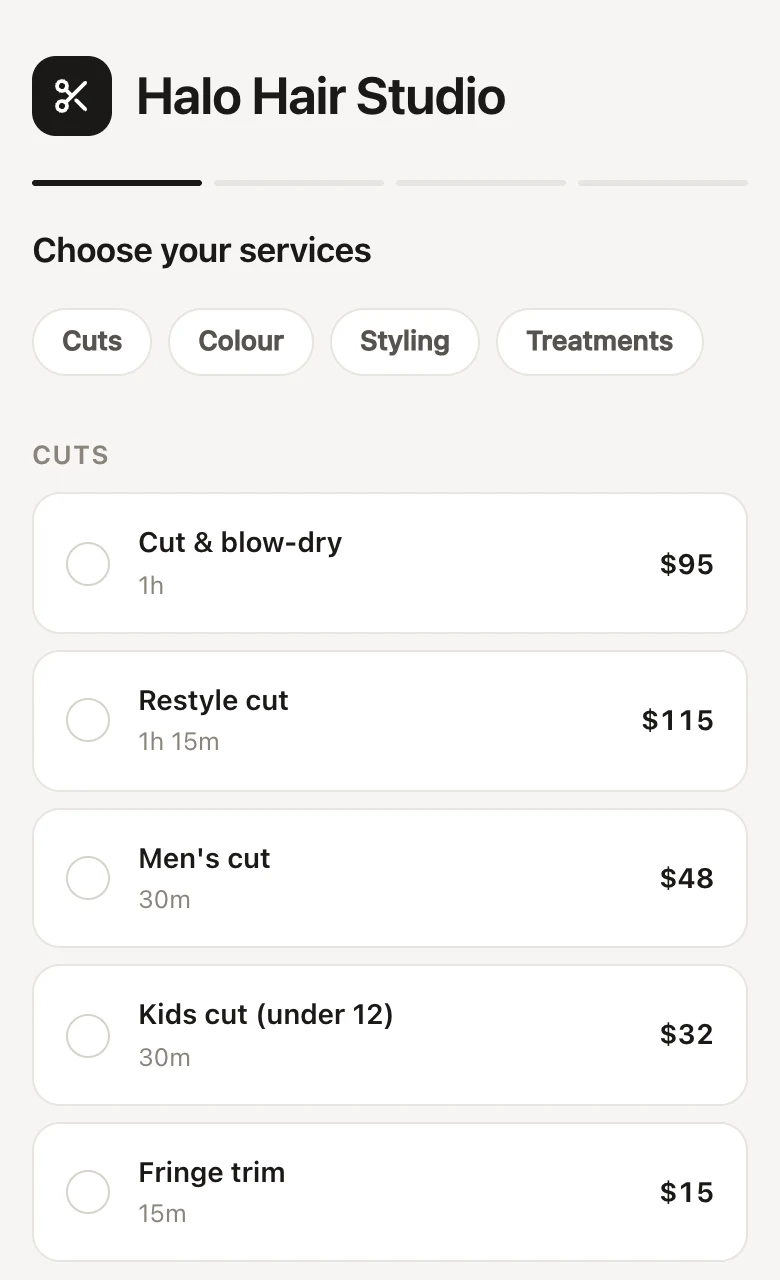
Step 1: choosing services on the booking page
The first step, Choose your services, shows:
- Your salon's name, logo and cover photo, your photos and links (branding), then your address with Directions, today's opening hours ("Open today 9am–5:30pm", tap for the week) and your phone number.
- Looking for a present? Buy a gift voucher if you sell gift vouchers online, and Manage your bookings if the client area is on.
- Your welcome message, if you have one.
- Your services by category, with buttons to jump between categories when there are three or more. Each shows its length, description and price: "from $85" when its price varies, or a range like "$85–$120" when stylists charge differently. Specials say when they're on, such as "Until 31 Oct".
- Bundles, marked Bundle, with "Save $20" when the bundle costs less than its services. Picking a bundle replaces any of its services already picked.
- Add-ons under a picked service: "Add to your Colour?".
Clients tap services to tick them. A bar at the bottom shows how many services, the total time and the price, and Continue. Prices are what clients will pay, tax included. If they try to pick more than your limit, the page says "You can book up to 4 services at once".
Step 2: choosing a stylist on the booking page
When you let clients choose their stylist, Who would you like? shows Anyone (Earliest available) and each team member who does every service picked, with their job title, short bio and, where prices differ, their price. If only one person does them all, this step is skipped.
When no one person does every service picked, Continue is greyed out and the page says "No one person does all of those – try booking them separately."
Step 3: picking a time on the booking page
Pick a time shows the services, the stylist (if chosen), the length and the price, then a week of days. Days with no times are greyed out. Times are grouped into Morning, Afternoon and Evening, and the arrows move a week at a time, up to as far ahead as clients can book.
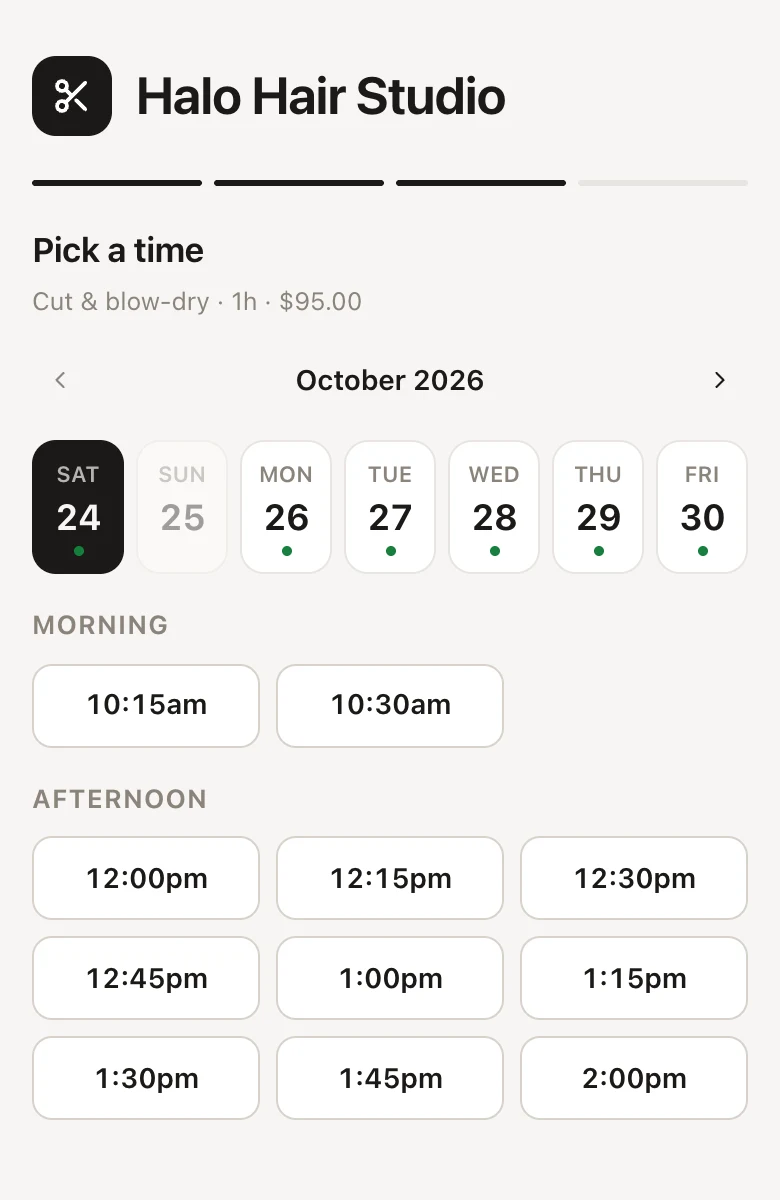
When a week has nothing free, the page says "No times free this week" with Find the next available time, which jumps to the next day with times. If there's nothing in the whole booking window, it says "No times available in the booking window – please call us."
Which times show depends on your team's hours and your online booking rules.
Step 4: your client's details on the booking page
Your details sums up the booking (day, time, services, who with, length and price) with Change time, then asks for:
- First name and Last name (the last name is optional)
- Mobile, "So we can reach you about your appointment" (required unless you've turned off Require a mobile number)
- Email (always required)
- Anything we should know? (optional): their note goes on the appointment
- a tick-box: "Send me the occasional offer or news from" your salon, for new clients' marketing consent
- Have a promo code? (promo codes)
If a service needs a patch test, a note says colour services need a skin patch test at least 48 hours before if they haven't had one with you in the last 6 months, and that you'll be in touch (client alerts and patch tests). Under the button it says how close to the appointment they can still change or cancel online.
With the client area on, Booked with us before? lets returning clients sign in with a code instead of typing their details.
The button is Confirm booking (or Send booking request when you approve every booking first).
When an online booking needs a deposit or a card
If you take deposits or a card on file online, the details step shows a box with a lock before the button, for example "You pay a $30 deposit to secure the booking. It comes off your bill on the day. Paid securely by card through Stripe.", with your policy wording under it. The button becomes Continue to pay $30 deposit, Continue to payment or Continue to save card.
Clients then pay on Stripe's secure page. While they pay, the time is held for 30 minutes and their booking link says "Your booking isn't confirmed until you pay… We hold the time for 30 minutes.", with Pay now and Cancel this booking. Once paid, they come back to their booking link ("Confirming your payment…"), and they're booked in. If the time to pay runs out, the link says "This booking has expired" and that they haven't been charged, with Book again.
The confirmation screen after booking online
Once booked, clients see "You're booked in" with their first name, the day and time, the services and who with, "We've sent the details to" their email, and your after-booking message. Then:
- Add to my calendar
- View or change booking: their booking link
- Book something else: starts again, with the details they typed still filled in (handy for booking someone else)
A booking you approve first shows "Request sent" instead (approving online bookings first).
They also get your confirmation by text, email or both, with the link to their booking (confirmations and reminders). Your team gets an alert if they have them on (team alerts).
When someone else books the same time first
If two people book the same time at the same moment, the first booking wins. The second client sees "Sorry, that time was just taken. Please pick another." and goes back to the times, which show what's free now. Where FullColumn picks the stylist and the price would differ with whoever is free instead, it says "Sorry, that time has just changed. Please pick a time again to see its price."
When a returning client books online with new details
FullColumn finds returning clients by the email or mobile they type, so they're not added twice:
- Same details: the booking goes on their client card.
- One detail matches and the other is new (their usual email with a new mobile, say): the booking still goes on their card, but their details aren't changed, since anyone can type someone else's email. The appointment note says what they typed, for example "Booked online with mobile 0412 345 678 (not saved to their profile)." Check with them and update their card yourself. Deposits and approval treat them as a new client this time.
- A parent's email or mobile with their child's name: when the first name is clearly someone else's, FullColumn adds a new client with a note such as "Shares an email and mobile with Kate Lee (booked by someone else on their details?)". Short forms count as the same name, so Kate books as Katherine.
- A brand-new client is added to your client list, marked as joined online, with marketing consent if they ticked the box. The tick-box doesn't change a returning client's choices.
If FullColumn thinks a new client might be someone already on file, the appointment says so and you can merge them (merging duplicate clients).
How online bookings show in your calendar
An online booking goes straight into the stylist's column, marked Online (with a globe), and its client is added to your client list or matched to their card. A New client badge shows when they haven't been in before, and their note from Anything we should know? is on the appointment. Bookings waiting for a deposit show "Waiting for online payment", and booking requests show an hourglass until you answer them.
After booking online: the client's booking link
Once booked, your client manages their appointment from their booking link, in their confirmation and reminders: they can confirm they're coming, add it to their calendar, change the time or cancel outside your cutoff, or ask you to inside it.
Common questions
A client says they didn't get a confirmation. What do I check?
Open the appointment and check their mobile and email are right, then Send confirmation to send it again. The message log shows whether it was delivered (how texts and emails are sent).
Can clients choose a time that isn't shown?
No. The booking page only offers times that fit. For anything else, they can call you and you can book it in the calendar.
A regular client was added as a new client when they booked online. Why?
They typed an email and mobile that aren't on their card, or a first name that's clearly not theirs. FullColumn never matches on a name alone. If the appointment shows a possible duplicate, merge the two cards (merging duplicate clients), and update their details so it doesn't happen next time. With the client area on, regulars can sign in instead of typing their details.
Can a client book for their child on their own mobile?
Yes. They type their child's name with their own mobile and email. If the name is clearly different from the person on file, FullColumn adds the child as a new client, with a note that they share contact details. Signed in to the client area, they can pick who the booking is for.
Can a client book for two people at once?
No: each online booking is for one person. After booking, Book something else starts again with the details they typed still filled in.