Setting up your service menu
Add services and categories with prices and lengths, processing and padding time, patch tests, rebooking reminders, and who does each one.
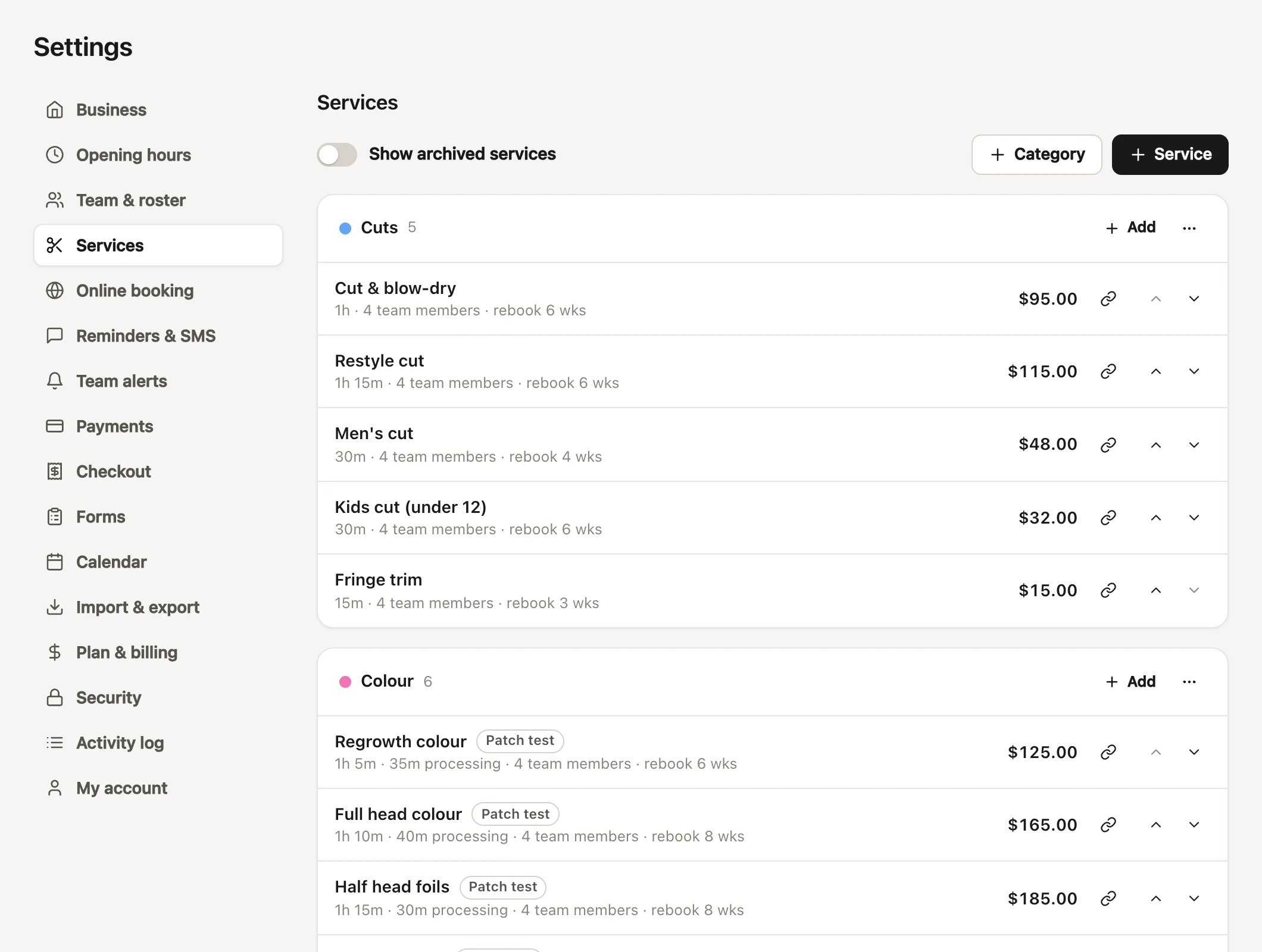
Your service menu is everything clients can book: cuts, colours, treatments and the rest, in categories, each with its price, how long it takes and who does it. The calendar, checkout and your booking page all work from it. You'll find it in Settings → Services.
Your starting service menu
When you sign up, you can start with a typical hair salon menu: cuts, colours (with processing time and patch tests already set), styling and treatments. Its prices are placeholders, so go through them before you take bookings, and change, remove or add whatever you like.
Bringing your clients across from your old booking system? Set up your services here first: appointments you import are matched to your menu by name, and anything not on it keeps the name and price from the file. See bringing your clients across.
Adding a service
- Open Settings → Services.
- Choose Service (or Add on a category).
- Enter its Name, and choose its Category, Duration and Price.
- Set anything else it needs (see what each service setting does), and tick who does it under Who does it.
- Choose Save.
Changing the service menu needs "Edit services and prices". Owners have every permission, and managers have this one unless it's been taken off them.
What each service setting does
| Setting | What it does |
|---|---|
| Category | Where it's listed, here and on your booking page. |
| Rebooking reminder | Every 2 to 26 weeks, or No suggestion. Suggested at checkout when you book their next visit, and times the "time to rebook" text. |
| Duration | How long it takes, from 5 minutes to 8 hours. With processing time, it's worked out for you. |
| Price | Its standard price. Stylists can charge more or less: see price levels. |
| Price varies | Shows "from $95" on your booking page, for services priced on the day. |
| Processing time | Busy first, then the colour develops while the stylist takes someone else. |
| Padding time | Set-up or clean-up time before or after, kept clear on the stylist's calendar. |
| Only for a while | Offers it online between a first and last day: see specials. |
| Bookable online | Clients can choose it on your booking page. On for new services. |
| Needs a patch test | Warns when booking a client whose last patch test is over 6 months old. |
| Description | Shown to clients on the booking page. |
| Client messages | Texts or emails for this service: before the visit, aftercare and the rebooking reminder. See service messages. |
| Suggest as an add-on | Offers it as a one-tap extra online: see add-ons. |
Setting prices, and "Price varies"
Enter the price the way your salon's tax setting says (Prices include tax or Tax is added at checkout, in business details). If tax is added at checkout, your booking page shows clients each price with tax already added, so they see what they'll pay.
Turn on Price varies for a service priced on the day, like a long-hair colour: your booking page shows "from" before the price. At checkout the service starts at its booked price, and you can change it there.
Changing a price never changes appointments already booked: they keep the price they were booked at.
Processing time and padding time on a service
Processing time is for colours and treatments that develop. Turn it on and set:
- Busy: the stylist's time with the client before processing.
- Processing: the time the colour develops, when the stylist is free to take someone else.
- Busy time after processing (optional): for a service that includes its own finish, like a package.
The bar underneath shows the split, like "Busy 30m, then free for 40m: 1h 10m in all", and Duration becomes the total. The next service in the visit starts after processing. The calendar shows processing as a hatched band: see processing time.
Padding time is time the stylist needs before or after (set-up, a consultation, cleaning up), from 5 minutes to 2 hours. It's kept clear on their calendar and shown shaded, and online bookings and clash warnings allow for it, but it isn't part of the client's appointment time. Several services in one visit run straight on, with padding only at the start and end.
Choosing who does each service
Under Who does it, tick each team member who does the service; each shows the price and time they'll charge. A new service starts with everyone ticked. In the service list, "nobody assigned" means nobody does it yet.
- Online, clients can only book a service with someone who does it, and a service nobody does doesn't show at all.
- At the desk you can book anyone for anything: someone who doesn't do it is marked "(doesn't usually do this)" when you pick them.
You can also tick services from the team member's side, under Services they do in their details.
A stylist who charges their own price, or takes longer or less time: open Exceptions for individual team members and enter their price and time. Blank uses the standard ones. For a whole group of stylists, use price levels instead.
Showing a service on your booking page
A service shows on your booking page when it's Bookable online, at least one team member who's bookable online does it, and (for a special) one of its days is within how far ahead clients can book. Services online show in your categories, in the order of your menu.
Turn Bookable online off for services you only book at the desk, like a bridal trial: they show "Not online" in the list.
The link button beside a service (Copy booking link) copies a link to your booking page with that service already chosen, ready to share on Instagram or in a message.
Organising categories and the order of your menu
- New category: choose Category, give it a Name and a Colour on the calendar, and Save.
- Rename, recolour or move one: use the … on the category: Rename / colour, Move up, Move down.
- Delete a category: Delete category keeps its services and moves them to Uncategorised.
- Order services: the arrows on each service move it up or down within its category. Your booking page lists them in the same order.
Removing or archiving a service
- Open the service and choose Remove, then Remove again to confirm.
- If it has never been booked, it's deleted. If it has, it's archived so your history stays: it leaves your menu and booking page, and past appointments and sales keep it.
A service that's part of a bundle can't be removed until you take it out of the bundle, or remove the bundle.
Bringing back an archived service
- Turn on Show archived services at the top of Settings → Services.
- Open the service, choose Unarchive, then Save.
If it was a special whose last day has passed, that day is cleared when you unarchive it. Set a new one if it's only back for a while.
Common questions
Does changing a service's price change appointments already booked?
No. Appointments keep the price they were booked at. New bookings use the new price.
Why isn't a service showing on my booking page?
Check that Bookable online is on, that someone under Who does it has Bookable online turned on in their own details, and, for a special, that its dates are within how far ahead clients can book.
How do I charge more for senior stylists?
Set up price levels (Junior, Senior, Director…), or give one person their own price under Exceptions for individual team members.
Why can't I remove a service?
It's part of a bundle. Take it out of the bundle in the Bundles card, or remove the bundle, then try again.
Can I put the same service in two categories?
No. Each service has one category. For a combination of services sold as one, make a bundle.