# Building consultation and feedback forms
> Make consultation, consent and feedback forms from scratch or a ready-made one, with ratings, follow-ups, flags, photos, a signature and a thank-you page.
Source: https://docs.fullcolumn.com/forms/building-forms
Forms are the questions you want your clients to answer. Consultation forms come before a client sits in your chair: their hair history, allergies, what they'd like, and their consent and signature for colour or chemical work. Feedback forms come after the visit: how it went. Clients fill them in on their phone, or on the salon iPad, and the answers wait on their appointment. You build each form once in **Settings → Forms**, and its rule decides who gets it: see [choosing who gets a form, and how often](https://docs.fullcolumn.com/forms/who-gets-forms), and for feedback, [asking for feedback after a visit](https://docs.fullcolumn.com/forms/feedback-forms).
## Starting a new consultation form
1. Open **Settings → Forms**. Consultation forms are listed under **Before the visit**, and feedback forms under **After the visit**.
2. Press **New form**, then choose **Blank consultation form**, or a ready-made form under **Before the visit**. (Before you have any consultation forms, the ready-made ones show as cards under **Start with a ready-made form**, with **Or start from scratch** underneath.)
3. Type a **Form name**. Clients see it, so make it friendly: "Colour consultation" rather than "Form 2".
4. Add an **Introduction** if you like: a line or two shown at the top of the form.
5. Check **When it’s asked** says **Before the visit**, and set **Who fills it in** and **How often** ([form rules](https://docs.fullcolumn.com/forms/who-gets-forms)).
6. Add your questions with **Add question**.
7. Press **Create form**.
A new form is switched on straight away, so it goes out with any appointment booked or changed from then on that matches its rule. If appointments already booked match it too, you're asked whether to add it to them ([forms for appointments already booked](https://docs.fullcolumn.com/forms/who-gets-forms#when-a-new-form-or-a-rule-change-takes-effect)). For a feedback form, choose **Blank feedback form** or **How was your visit?** under **After the visit** instead ([making a feedback form](https://docs.fullcolumn.com/forms/feedback-forms#making-a-feedback-form)).
## Ready-made consultation form templates
Three ready-made consultation forms, written for Australian salons, give you a head start. Change every word to suit how you work.
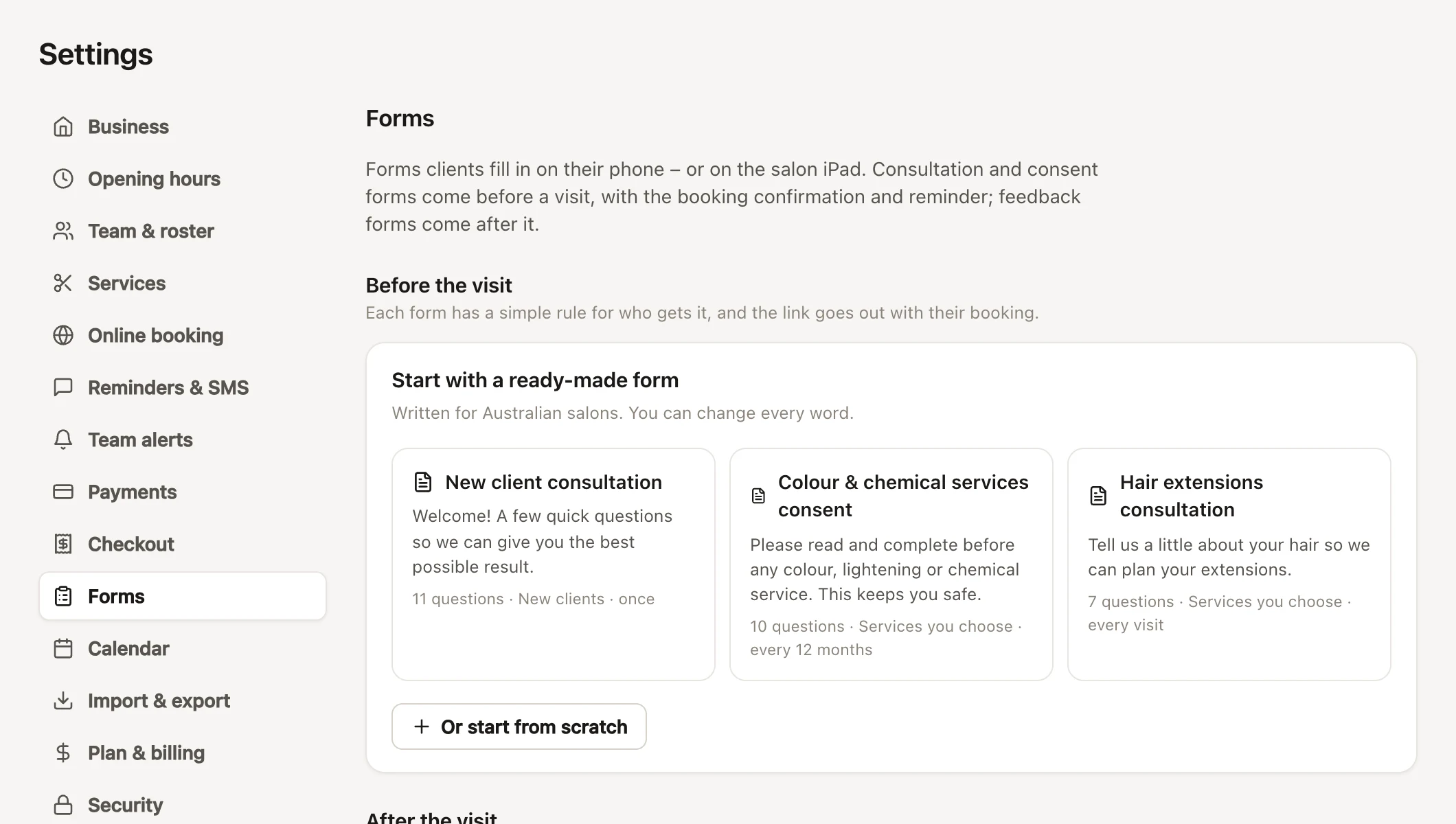
| Template | Who gets it | How often | What it asks |
| -------------------------------------- | ------------------- | --------------- | ------------------------------------------------------------------------------------------------------------------------------------------------------------------------------------------------------------------------------------------------------------------------------------------------------------ |
| **New client consultation** | New clients | Once | Hair type, chemical history in the last 12 months (flags henna or box dye), what they'd like to achieve, inspiration photos and a photo of their hair now, allergies or sensitive skin (with a "Please tell us more" follow-up), scalp conditions, pregnancy or breastfeeding, a declaration and a signature |
| **Colour & chemical services consent** | Services you choose | Every 12 months | Past reactions to colour, dye or black henna (with a "Tell us what happened" follow-up), a patch test in the last 6 months, medication that affects skin or hair, home colour since the last visit, agreements to the patch test and the service, and a signature |
| **Hair extensions consultation** | Services you choose | Every visit | Method, extensions before, hair loss or thinning, the length and colour they'd like, a photo of their hair now, an agreement about maintenance appointments, and a signature |
For the colour and extensions templates, FullColumn ticks the services that look like a match (colour, foils, balayage, toners, lightening and services that need a patch test; or extension services) and tells you it has. Check the ticks before you save.
There's a ready-made feedback form too, **How was your visit?**: see [the ready-made feedback form](https://docs.fullcolumn.com/forms/feedback-forms#the-ready-made-how-was-your-visit-feedback-form).
## Question types for consultation and feedback forms
| Type | What your client does |
| ------------------ | ------------------------------------------------------------------------------- |
| **Heading & text** | Nothing: a section title, with an optional explanation, to break a long form up |
| **Short answer** | Types one line |
| **Long answer** | Types a paragraph |
| **Yes / No** | Picks Yes or No |
| **Single choice** | Picks one option |
| **Checkboxes** | Ticks any that apply |
| **Rating** | Taps one to five stars, or picks a number from 0 to 10 |
| **Date** | Picks a date |
| **Photo** | Takes a photo with their phone camera, or picks one they already have |
| **Agreement** | Ticks a statement to agree to it |
| **Signature** | Signs with a finger, a stylus or the mouse |
Every type works on both kinds of form. A form can have one **Signature**. New **Agreement** and **Signature** questions start out required. A **Rating** question's **Scale** is **One to five stars** or **0 to 10** ([rating questions](https://docs.fullcolumn.com/forms/feedback-forms#rating-questions-stars-or-0-to-10)).
## Adding and arranging questions on a form
- **Add question** lists the types. The new question opens, ready to type. If the form ends with its signature, new questions go above it, so the signature stays last.
- Tap a question to open it. Type the **Question** (an agreement's **Statement**, a heading's **Section title**), and press **Add help text** for a line shown under it.
- Turn on **Required** when the form can't be sent without an answer. Headings can't be required.
- The type menu at the bottom of an open question changes its type.
- The arrows move a question up or down, the copy button duplicates it, and the bin deletes it. Changed your mind? Press **Undo** on the message that appears.
**Single choice** and **Checkboxes** questions need at least two options, and take up to 30. In an option, Enter adds the next one and Backspace in an empty one removes it. Paste a list, one per line, to add them all at once.
Web addresses you type in a form's **Introduction**, a question's help text or a heading's explanation become links for your clients, opening in a new tab, so a form half filled in is never lost.
## Flagging answers your team should see
A flag makes sure nobody misses an allergy, a past reaction or an unhappy client. Flagged answers are highlighted on the filled-in form, and a flagged consultation form shows on the appointment in the calendar ([reviewing answers](https://docs.fullcolumn.com/forms/reviewing-answers)). Open a question to set its flag:
- **Yes / No**: under **Flag for staff**, choose **If “Yes”** or **If “No”** (or **Don’t flag**).
- **Single choice** and **Checkboxes**: under **Flag for staff if they pick**, tap the options that matter.
- **Rating**: under **Flag for staff if they give**, tap the ratings that matter, like **1 star** and **2 stars**.
- **Short answer**, **Long answer** and **Date**: turn on **Flag for staff if answered**. It's made for "If yes, tell us more" questions.
Headings, photos, agreements and signatures can't be flagged.
## Alerting the team when a form comes in
A form sent in with flagged answers alerts the team members who've chosen those alerts ([team alerts](https://docs.fullcolumn.com/messages/team-alerts)). To hear about every one, flagged or not, turn on **Alert the team whenever it’s filled in** in a consultation form, or **Alert the team about every response** in a feedback form. Feedback alerts only go to people who can see clients' feedback.
## Follow-up questions that only show for certain answers
A question can wait until an earlier answer calls for it: "Have you ever had a reaction to hair colour?" → **Yes** → "Tell us what happened".
1. Open the follow-up question and press **Only show if…**.
2. Choose the question it depends on. Only **Yes / No**, **Single choice**, **Checkboxes**, **Rating** and **Agreement** questions above it can be chosen.
3. Choose the answer that shows it: **Yes** or **No**; one or more options of a choice (for checkboxes, it shows when any of them is ticked); one or more ratings; or, for an agreement, when it's ticked.
The follow-up sits indented under its question, with a line such as "Only if “Any allergies?” is Yes". While it's hidden it isn't required, and anything typed in it isn't kept, so a hidden question can never raise a flag. A follow-up can have its own follow-ups: each shows only while the one above it is showing.
If you delete or move the question a rule depends on, or remove the answer it was waiting for, the question says **“Only show if” rule needs fixing**, and the form can't be saved until you fix it or press **Remove rule**. Renaming an option updates the rules that use it.
## Photo questions on a consultation form
A **Photo** question lets clients show you their hair as it is now, or the look they're after. Under **How many photos**, choose **One photo**, **Up to 2** or **Up to 3**. A form can ask for up to 25 photos across its photo questions: saving one that asks for more says so. Clients take a photo with their phone or pick ones they already have. Photos are made smaller on the phone before they upload, and clients can carry on with the form while they do. Only your team can see them, and any you want to keep go to the client's photos with one click ([keeping photos from a form](https://docs.fullcolumn.com/forms/reviewing-answers#keeping-photos-from-a-form-with-the-client)).
## A thank-you page after the form is sent
Clients always see a thank-you when they send a form. Under **After they send it**, any form can add your own text and buttons below it, such as a link to your Google reviews or to book their next visit, for everyone or only for certain answers. Press **Add text or a button** to start. See [thank-you pages](https://docs.fullcolumn.com/forms/feedback-forms#thank-you-pages-text-and-buttons-after-a-form-is-sent).
## Previewing a consultation form
Switch to **Preview** at the top of the form to see it as your clients will. Answer it, try the follow-up questions and the photo questions, and press **Try submitting** to check the required ones. With a thank-you page, the preview also shows what your client would see after sending, for the answers you've given. Nothing in the preview is saved; **Clear answers** starts it again.
## Changing a form after clients have filled it in
Edit a form whenever you like: it never changes what clients have already sent.
- Forms already filled in keep the questions exactly as they were answered, with the signature and when it was signed.
- Forms still waiting to be filled in pick up your changes, thank-you page included. The form tells you how many before you save: "Changes apply to the 3 forms waiting to be filled in."
- A client part-way through on their phone keeps what they'd typed for the questions that are still there.
- **When it’s asked** can't change once clients have been sent the form, even if it was withdrawn since ("Clients have been sent this form, so this can’t change."). Make a new form instead.
## Switching off, archiving or deleting a consultation form
- **Form is switched on**: turn it off and save to stop the form being added to appointments. It then shows as **Archived** in your list. Saving it switched off withdraws any copies still waiting to be filled in, as **Archive** does, and their links stop working; the form says so before you save. Forms already filled in stay on clients' records.
- **Archive** (at the bottom of an open form, once anyone has filled it in): the form stops being sent, any requests not filled in yet are withdrawn, and the completed forms stay on client records.
- **Delete** takes the place of **Archive** while nobody has filled the form in, and removes it completely.
- To bring a form back, turn on **Show archived forms**, open it, press **Restore it**, then **Save**.
The arrows beside each form in the list set the order your forms are listed in, here and wherever you pick a form to send. Consultation forms and feedback forms each keep their own order.
## Who can build and change forms
Building, changing, archiving and reordering forms, consultation and feedback alike, needs the **Edit consultation and feedback forms** permission. Managers have it unless you take it away, and owners have every permission ([roles and permissions](https://docs.fullcolumn.com/team/roles-and-permissions)). Sending forms, handing over the iPad and reading consultation answers is open to the whole team; reading feedback needs "See clients’ feedback". On a shared [Front desk device](https://docs.fullcolumn.com/team/shared-devices), **Settings → Forms** asks for the person's password first.
## Common questions
### Can a form have more than one signature?
No, one per form. Use an **Agreement** question for each thing a client agrees to, and one **Signature** at the end.
### Can a question depend on a question further down?
No. A follow-up can only depend on a question above it, so the form always reads from top to bottom. A thank-you page part can depend on any question.
### How many questions can a form have?
Up to 80, headings and the signature included. From 70, the count shows beside **Add question** ("72 of 80 questions"); at 80, **Add question** stops and says "A form can have up to 80 questions: split it into two forms." If a form is getting that long, think about splitting it: a new client form once, and a shorter colour form every year.
### Do my clients need an account to fill in a form?
No. The link in their message opens their form straight away.
### Will a new form go to appointments that are already booked?
Only if you say so. When you save a new consultation form that's sent automatically, FullColumn asks "Add it to the 3 appointments already booked?" when any still to come match its rule: **Add it** adds it to them, and **Not now** leaves them as they are ([forms for appointments already booked](https://docs.fullcolumn.com/forms/who-gets-forms#when-a-new-form-or-a-rule-change-takes-effect)). You can also add the form from an appointment or send it from the client's profile ([sending forms](https://docs.fullcolumn.com/forms/sending-forms)).