# Using the calendar: day and week views, columns and colours
> Find your way around the appointment calendar: day and week views, a column per stylist, colours, the now line, staying in sync and Calendar settings.
Source: https://docs.fullcolumn.com/calendar/the-calendar
The calendar is your appointment book. Each stylist has their own column, so the front desk can see the whole salon's day at once, and everyone sees changes from the other devices in the salon within seconds. It's the first item in the menu, and where the staff app opens.
## The calendar toolbar
Along the top of the calendar, from left to right:
- **Today** jumps back to today, and the arrows step a day at a time (a week at a time in the week view).
- The date opens a month calendar to jump to any day.
- The count says how many appointments are on the day or week ("6 appointments", or "No appointments yet").
- **Notes** opens the day's notes and to-dos, and **Waitlist** opens the waitlist for the dates on screen.
- **Day** and **Week** switch views.
- **Team** (in the day view) chooses who's shown; in the week view the same button chooses whose week it is.
- **⋯** holds the rest of the calendar's options.
- **New** starts a new appointment.
On a narrow screen, whatever doesn't fit moves into the **⋯** menu. A dot on **⋯** means something in there wants a look, like an overdue to-do or someone on the waitlist who fits a free time.
## The day view: a column for each team member
In the day view, every team member who takes appointments gets a column. Above it are their name, their hours that day and how many appointments they have ("9am–5:30pm · 4 appts"), or "Not rostered".
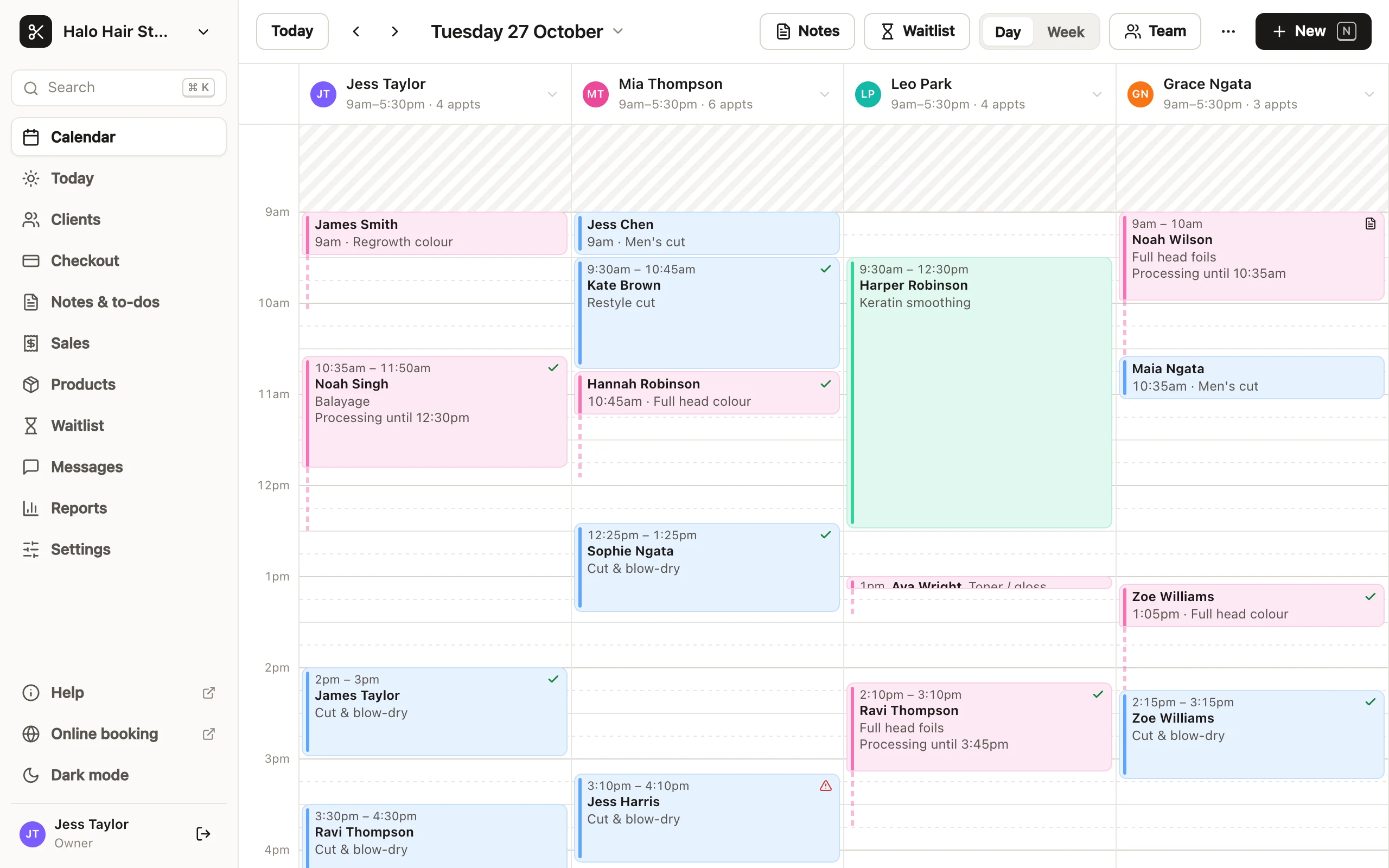
- Time outside someone's hours is shaded, so you can see at a glance who's free.
- Click an empty time in a column to start a new appointment with that person at that time. With a mouse, the time shows as you hover.
- An **Unassigned** column appears when an appointment that day was booked for "Anyone" and has no team member yet.
- Someone removed from the team, or who no longer takes appointments, gets a column of their own on any day they still have appointments, marked "No longer on the team" or "Doesn't take appointments", so those appointments never go missing. Move them to someone on the calendar.
- Click a team member's name for a menu: their week, **Hours today…** (to change their hours for just that day; on another day it names the day), **Regular hours…**, **Block time…** and their details. You see the items your permissions allow; with none of them, clicking the name opens their week.
A team member gets a column when **Takes appointments** is on in their details. See [adding team members](https://docs.fullcolumn.com/team/adding-team-members) and [team hours and the roster](https://docs.fullcolumn.com/team/hours-and-roster).
## Choosing who's on the calendar
The **Team** button in the day view chooses whose columns you see:
- Under **Show on calendar**, tap a name to hide or show that person. The button then says how many are showing ("3 of 5"), and **Show everyone** brings them all back.
- **Hide staff not rostered** is on to start with: the calendar only shows people rostered that day or with an appointment that day. If nobody's rostered, everyone shows. Choose **Also show staff not rostered** to see everyone.
- **Roster…** opens the week's roster (for people who can "Change rosters and time off"), and **Add team member…** adds someone (for people who can "Manage the team, permissions and PINs").
Who's shown is remembered in the browser you're using, for this salon, so the front desk computer and a stylist's phone can each show different people.
## The week view
Choose **Week** (or press W) to see seven days, starting on the day set in **Settings → Business → Week starts on**.
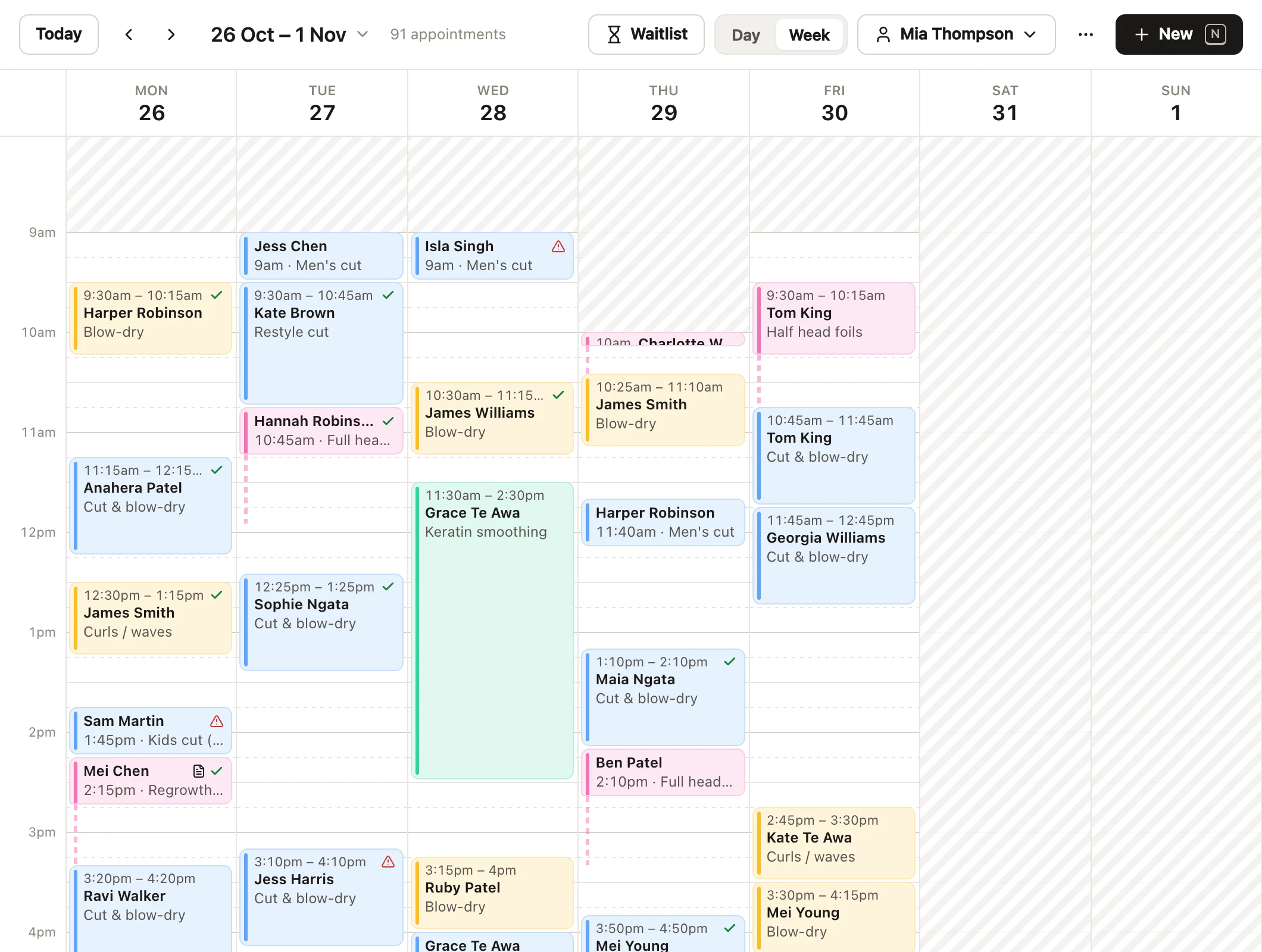
- The **Whose week** button picks **Everyone** or one team member. Everyone's week colours each appointment by its team member.
- Shading shows one person's hours, or for everyone, the hours when anyone is working.
- Click a day's header to open that day in the day view.
- An hourglass with a number on a day's header is how many people on the waitlist could come that day. Click it to list them.
- Notes and to-dos are counted under each day's header ("2 to-dos", "1 of 2 done", "3 notes"). Click one to see the list.
On a phone, the week is one person's (yours, if you take appointments), with a column for each day that scrolls sideways and opens at today.
## What an appointment card shows
Each appointment shows its time, the client's name (or "Walk-in") and the service. Taller cards also show the appointment's notes. Hover over a card, or an icon on it, to see more: the client's mobile, notes, alerts and payments.
| On the card | What it means |
| ----------------------------------- | ------------------------------------------------------------------------------ |
| NEW | The client's first visit |
| REQUEST, with a dashed amber border | An online booking request waiting for you to approve it |
| Red warning sign | The client has an alert |
| Note | The appointment has notes |
| Globe | Booked online |
| Clipboard | A consultation form isn't filled in yet (amber), or has answers to check (red) |
| Green card | A deposit is paid |
| Green tick in a circle | Paid in full |
| Paper plane | A deposit was asked for and isn't paid yet |
| Padlock | A card saved online |
| Clock | Waiting for the client to pay online |
| Hourglass | A booking request: approve or decline it |
| Tick | Confirmed |
| Person with a tick | Arrived, or in progress |
| Dollar sign | Checked out and paid |
| Tick, on a completed appointment | Done, no charge: completed without a sale |
Completed appointments are faded, no-shows are striped red with the name crossed out, and cancelled ones are hidden until you choose **Show cancelled**. [Appointment statuses](https://docs.fullcolumn.com/calendar/appointment-statuses) explains each one. Processing time and padding have their own look: see [processing time and padding](https://docs.fullcolumn.com/calendar/processing-time).
## Colours on the calendar
**Settings → Calendar → Colour appointments by** decides the colour of each appointment card:
- **Service category** (to start with): the colour of the service's category, or the team member's colour if the category has none.
- **Team member**: each team member's own colour.
The week view for Everyone always uses team members' colours. Blocked time is grey and hatched, a whole-salon closure is red and hatched with a padlock, and time outside someone's hours is shaded.
## The now line and where the calendar opens
On today, a line crosses the columns at the current time, with the time beside it on the left. It moves along every 30 seconds.
When you open today, the calendar scrolls to about an hour before now. Another day opens at its first appointment.
The calendar shows the hours set in **Settings → Calendar** (**Day starts at** and **Day ends at**), and stretches to whole hours to fit any appointment, roster or blocked time outside them that day.
## Staying in sync across devices
The calendar refreshes itself every 30 seconds while it's on screen, and straight away when you come back to its window, so the front desk and the stylists' phones stay in step. Your own changes show at once. The waitlist on the calendar refreshes every minute.
If a refresh doesn't go through (the internet drops out, say), the calendar keeps what it had and says it couldn't refresh, with a button to try again.
## Display options: size, cancelled appointments and notes
The **⋯** menu on the calendar has a few options for how you like to see it:
- **Compact**, **Comfortable** (to start with) and **Spacious** change how much room each hour takes.
- **Show cancelled** puts cancelled appointments back on the calendar, faded and crossed out; **Hide cancelled** takes them away again.
- **Hide notes & to-dos** takes notes off your calendar; **Show notes & to-dos** brings them back.
- **Print day sheet** prints the calendar as it's showing. See [the Today page and day sheets](https://docs.fullcolumn.com/calendar/today).
These are remembered in the browser you're using.
## Calendar settings
**Settings → Calendar** is for people who can "Change salon settings (hours, online booking, messages, branding)". Owners have every permission.
| Setting | What it does | To start with |
| -------------------------- | ----------------------------------------------------------------------------------------- | ---------------- |
| **Day starts at** | The earliest time the calendar shows (5am to 12pm) | 8am |
| **Day ends at** | The latest time it shows (12pm to 11pm) | 7pm |
| **Snap appointments to** | 5, 10, 15 or 30 minutes: where dragged appointments land, and the steps in the time lists | 15 min |
| **Colour appointments by** | **Service category** or **Team member** | Service category |
The calendar stretches past the day's start and end on its own when someone's hours or an appointment fall outside them.
## Keyboard shortcuts on the calendar
| Key | What it does |
| ----------------------------- | --------------------------------------------------------------------------------------- |
| N | New appointment |
| T | Jump to today |
| ← → | Previous or next day (week, in the week view) |
| D / W | Day or week view |
| Esc | Close a panel, stop moving an appointment, or put away someone picked from the waitlist |
| ⌘ Enter | Save the open form (Ctrl Enter on Windows) |
Shortcuts wait while a drawer or menu is open, or while you're typing. For search and the rest, see [finding your way around](https://docs.fullcolumn.com/getting-started/finding-your-way).
## Setting up the calendar for a new salon
A new salon with just one team member sees **Set up your calendar.** above the calendar, with buttons for **Opening hours**, your hours and **Add team member**. Close it with the ×. Any time later, click a name at the top of the calendar for that person's hours.
If nobody takes appointments yet, the calendar says "No one is taking bookings yet", with **Add team member** for whoever manages the team.
## Common questions
### Why can't I see a team member's column?
They may be hidden under **Team**, not rostered that day (with **Hide staff not rostered** on), or not set to take appointments in their details. Try **Team → Show everyone** and **Also show staff not rostered**.
### Can the front desk and a stylist's phone show different people?
Yes. Who's shown, the day or week view, the size and the other display options are remembered in each browser.
### How do I make the calendar start earlier in the morning?
Change **Day starts at** in **Settings → Calendar**. The calendar also starts earlier on its own on a day when someone works or is booked earlier.
### Why is there an Unassigned column?
An appointment that day was booked for "Anyone". Open it and choose a team member, or drag it into their column.